• Home
  • Mobile
    • OS
      • Android
      • Apple IOS
      • One UI (Samsung)
      • Color OS (OPPO)
      • Funtouch OS (Vivo)
      • MI UI (Xiaomi)
      • Harmony OS (Huawei)
      • Oxygen OS (Oneplus)
    • New Releases
    • Gadgets
    • Rumoured
    • Update Notes
  • PC
    • Windows 10
    • Windows 11
  • Tech News
  • Apps
    • Android
    • IOS
    • Early Access
  • How to Guide
  • More
    • About us
    • Contact us
    • Privacy Policy
    • DMCA
*Welcome Everyone please note that out site has been moved to the New link with dedicated domain you can navigate Click Here to access our site all content will be found there and new content is being posted there as well.
*Click Here to go to New Site

 This is how you can speed up Windows 10 PC :


Windows 10, It is one of the widely used PC operating systems in the world. After closing support for windows 7 Microsoft able to get more users base for it's windows 10 System. Over the years windows had upgraded a lot, Despite of it's popularity and wide spread it still have some issues and windows used to clear them through updates as well. Due to usage of high number of apps or due to low RAM or may be Old PCs whatever the reason some users face lagging issue, Here we have figured out some solution where you can fix maximum problems by configuring your PC.

Start up Programs :

Some Application while they are installing in to our PC they took permission from us to Start the app while windows boot, Applications having such permissions will start automatically every time you boot your windows, This process may show big impact on system's performance and may lag the system as well. So, check them and try to disable the same.

=> Open task manager by clicking ctrl + shift + Esc keys or else you can get the same by right click on task bar.


=> Once Task bar opened move to the “Startup” tab and check for unnecessary apps. Right-click on applications and click on “Disable”.


Block Apps after Reboot :

It is different from Startup apps. Windows 10 allows some apps to restart their services and launch the last session so the apps are ready at launch. Which took some space and impacts on performance of your PC. Let's see how to disable this.

=> Click on windows button and type "Restart apps" which shows the feature option in list and open it


=> Once the feature opens in settings window you can simply turn it off if it is enabled.


Disable Cortana :

Cortana is windows voice assistant and if you are a big for this and don't want to disable it you can skip this step and if you are not supposed to use this feature you can disable because Cortana uses a lot of computer resources, Here is how you can disable the same :

=> You can simply disable Cortana from Task Manager application in start up if you want to disable it permanently check below process.


=> For these steps thanks to beebom, they have registry files with which we can enable and disable Cortana permanently from this link you can get those file download them and run Disable Cortana file.


=> Once you double click on the file it asks you to upload keys to registry for security purpose once you give permission it will be write to registry and Cortana will be disabled and if you want to enable again then use enable file as well.


Background Apps :

Background apps are Windows apps that run in the background to receive notifications and updates. While messaging and email apps may require background sync, apps like Candy Crush and Calculator don’t need it at all. These apps continuously run in the background and make the computer slow, besides draining the battery. Disabling these apps speed up your windows PC, here's how 

=> Open Privacy from Settings window of your PC
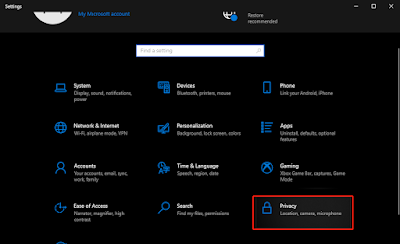

=> After clicking on Privacy you get menu, scroll that menu and click on "Background apps" option and turn it off to disable background application.


Remove Junk :

To speed up your PC you should periodically clean up junk files on your PC. These files stay on the hard drive and eat up space even though they have no utility in the functioning of the OS. You to use Windows 10 tool to clean up your PC. Here's how you can configure this.

=> By clicking windows key search for Storage in sear box so that you can get the application like below, open that option 


=> Now click on temporary files from the menu click on it


=> Now, Click on Remove files, So that you can clear al Junk files with one click


Configuring Windows Settings :

We can configure windows system to get high performance from our PCs let's check this out

* Privacy Settings :

=> Go to Privacy from settings window :


=> Now go to Diagnostic and feedback tab and make changes as shown in screenshot below.


* Power Plan Configuration :

=> Go to System from Settings window


=> Now go to Power & Sleep option and find for Additional Power Settings option from there 


=> You should see a High performance option here then activate the same if you didn't get one create your own plan from the option in left pane, In this way you can customize your performance.


* Delivery Optimization :

It uses computers on the local network to transfer chunks of Windows update files to the nearby PC. If you keep it turned on, then your PC may be used as a node to connect with other PC for sending update files. Turning it off will speed up your PC, Here's how you can do

=> Go to Update and Security from Settings menu


=> You can use Advanced Options under windows update tab


=> Now go to Advanced options and click on delivery optimization by scrolling down


=> Turn off this option shown in below screenshot and you are done with this


Visual Effects Configuration :

If you got the less powerful GPU it is better to disable Visual effects so that your PC will offload taks and boost your PC performance.

=> Type system settings in search bar by clicking on windows button and open View advanced system settings option.


=> You can get a window with Advanced settings menu, click on Settings under performance  here


=> Now you will get new window then select Adjust for Performance and then click on apply then you are done and you can see huge leap in performance after this.


Multiple Anti-Virus :

We won't Recommend using Multiple Anti-Virus Programs for your PC using Single Anti-Virus is enough to protect your PC, In any case Defender can't remove Malware from your PC your Anti-Virus will do that if you have installed more than 1 please uninstall as they are also one of the issue in lagging PC.

Storage Upgrade :

Using SSD storages is better and it will give boost to your PC in terms of performance. Comparing with Hard disks SSDs will give great performance leap to your PCs, try them out.

Check Background Processes : 

Keep Checking your PCs Background Processes because in some cases some unnecessary tasks which runs in background may cause slowing down your PC

=> From your Task Manager you can check process details and you can End those tasks which are unnecessary.


Graphics Settings :

If you have high performing GPU you can force all apps to use your GPU instead of CPU which will decrease load on CPU and give you good performance, you can do so by 

=> Search for Graphic Settings in windows search and you will get the option to configure the same


=> Click on any application in your PC and select High Performance option so that you can able to assign these graphic tasks to your GPU instead of CPU


Game Mode Settings :

If you didn't Play games in this PC it is better to disable game mode so that you can get boosted performance.

=> Search for Game Mode in windows search bar by pressing windows key


=> Turn off game mode in the pop up settings window


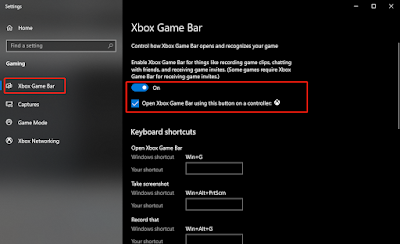
=> Then go to X box settings and turn everything off


Disable Windows Update :

If your PC is old or you don't need to update your device we can help you here and also updating a windows PC makes PC lagged by using many resources as well, you can click on anywhere on this test which will navigate to full post how many ways you can disable updates in your Windows PC.

Remove Bloat ware (Took Inspiration from beebom about this process and all credits to team beebom) :

Windows has become incredibly bloated with useless apps and services. These apps take up crucial RAM, processing power, and disk space. It significantly slows down the system, leaving you with a laggy mess. The sad part is that you can’t even uninstall these apps through the Control Panel. So, we are using Administrator privilege and Execution Policy as a workaround to remove such apps and services. Here are the steps to do it, which will finally speed up Windows 10 significantly.

Note: We are using an automated PowerShell script to debloat Windows 10. It’s developed by a developer named Sycnex on GitHub. Also, make sure you are using Windows on your Administrator account for this to work.

=> First up, download the Windows 10 Debloater ZIP file from the GitHub page. Click on the “Clone or download” button and then click on “Download ZIP”.


=> Extract Zip which is downloaded and you can see the file in them and Run Windows10DebloaterGUI  with Run With Powershell option.
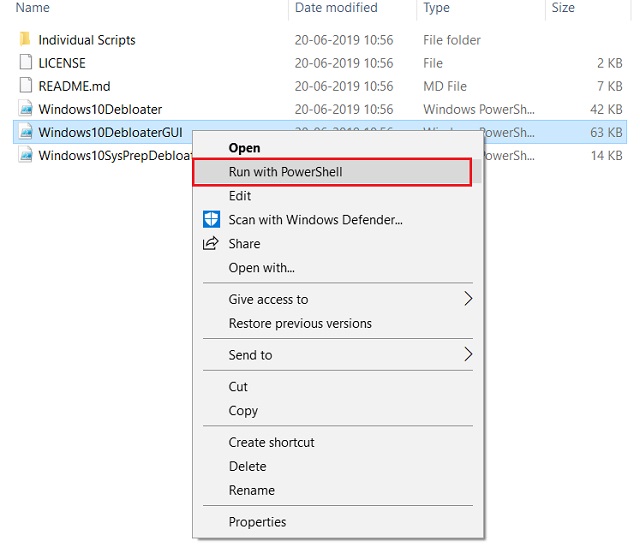

=> On the first run, it will ask if you want to grant Execution Policy permission to the script. Type “Y” and hit enter to allow the PowerShell script to run.

=> Now Windows 10 Debloater window will open. Here, click on “Remove all bloatware”. It will start removing such apps and services.
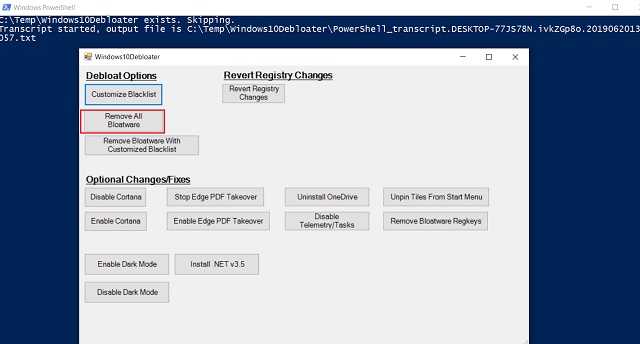

=> The process will take some time to complete so keep patience. Also, you will be prompted with many dialogues during the process to re-confirm your action. So keep a check on your PC during the process.

=> After the debloating process is complete, simply restart your PC. Now Windows 10 will become completely bloat-free without unnecessary apps. You will notice a remarkable boost in your Windows 10 computer’s performance.

=> Apart from this, Beebom specialist recommending to click on “Disable Telemetry” to cut off all telemetry services in the background. This will significantly increase your computer speed running Windows 10.

 
These all are the Processes to speed up your PC performance, Check them and try them then you can get fast PC compared to previous


 Samsung One UI 4.0 Feature details :


Like many Manufacturers samsung also used to develop and Provide it's Custom OS which is called as One UI. After Google releasing it's developer builds samsung develops it's customer ROM based on latest android version like the same google now comes to upgrade their qualified devices with One UI 4.0 based on Android 12, Let us see what samsung offers to it's users (Some Pictures used in this may be taken from Samsung's official site for better understanding the topic) :

We have already discussed about Android 12 features if anyone didn't checked the same go through this link and check it out because we are covering main changes which Samsung mentioned and we observed particularly.


Theming and Color Palette :

As part of Android 12 update, Android brings color palettes and customized theming option like the same samsung also brings color palette which is based on your wallpaper, Samsung used this feature and they developed as if a user sets a desired color tone, the AI recommends colors that best match the wallpaper. You can also change the same by trying new colors.


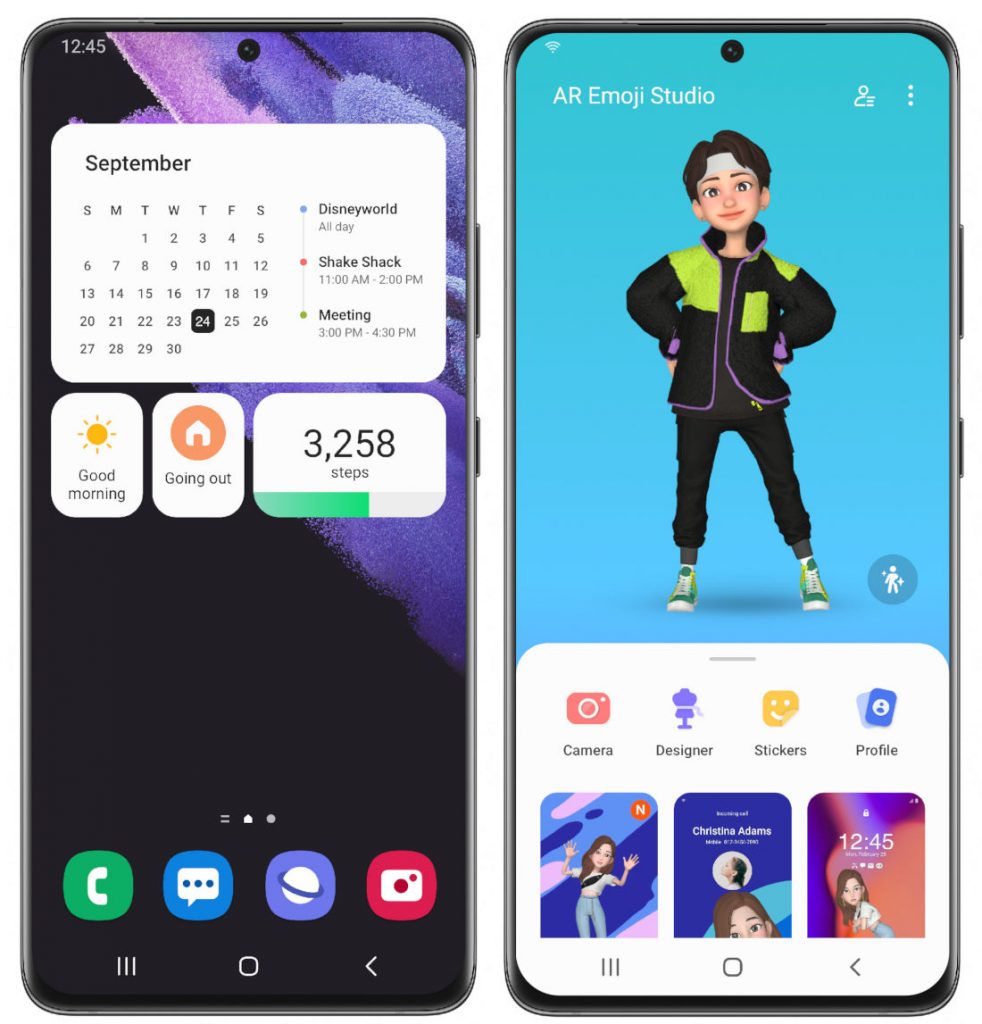
Widgets :

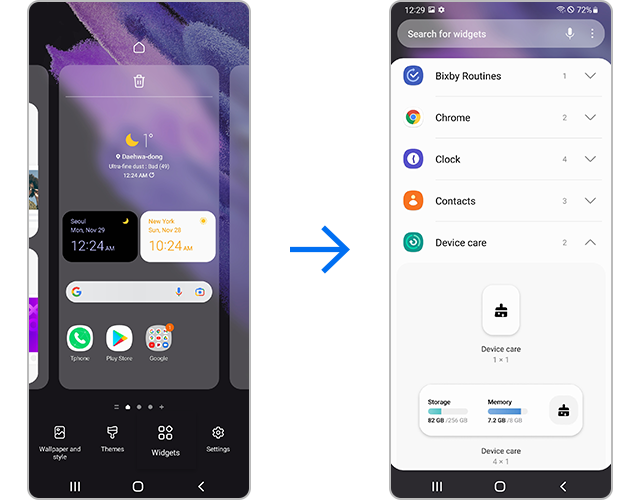
Samsung also brings widgets feature with latest update with which users can Try using the efficient and easily accessible widget feature. You can set widgets for each app and enable the feature.


Camera App :

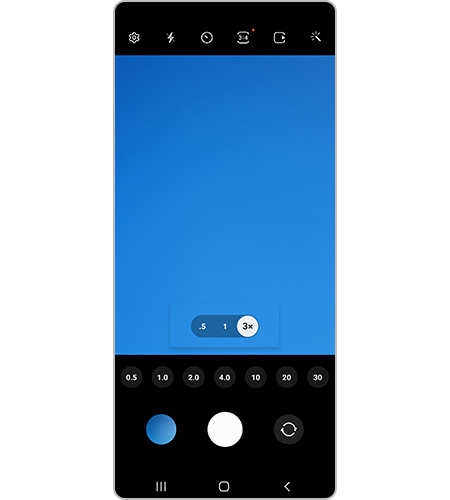
Samsung had bring updated Camera Application with this update the major update in application is The Scene Optimizer button now appears in Photo mode if the ambient light is low or if you are scanning a document. Settings for Portrait Mode and Night mode are now more intuitive. Samsung also has updated settings layout in the Pro Mode. The Pro Mode now feels more organized and has a cleaner look. The Zoom setting display has been changed from icons to numbers for easier understanding of the zoom magnification level.


Privacy :

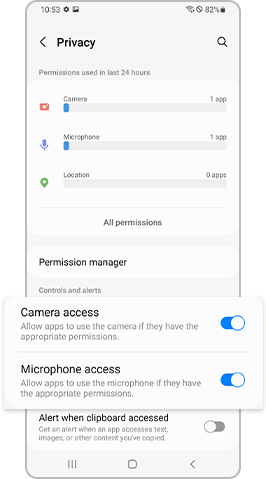
Samsung had updated Android 12's Mic and camera off features and included in the update as well. With a highly strengthened Privacy features, If you activate the Privacy setting, you can check which apps are using the Camera and Microphone in real time. Additionally, you can conveniently see detailed usage logs from the last 24 hours. From Settings, select Privacy, then enable Camera access and Microphone access.


Device Care :

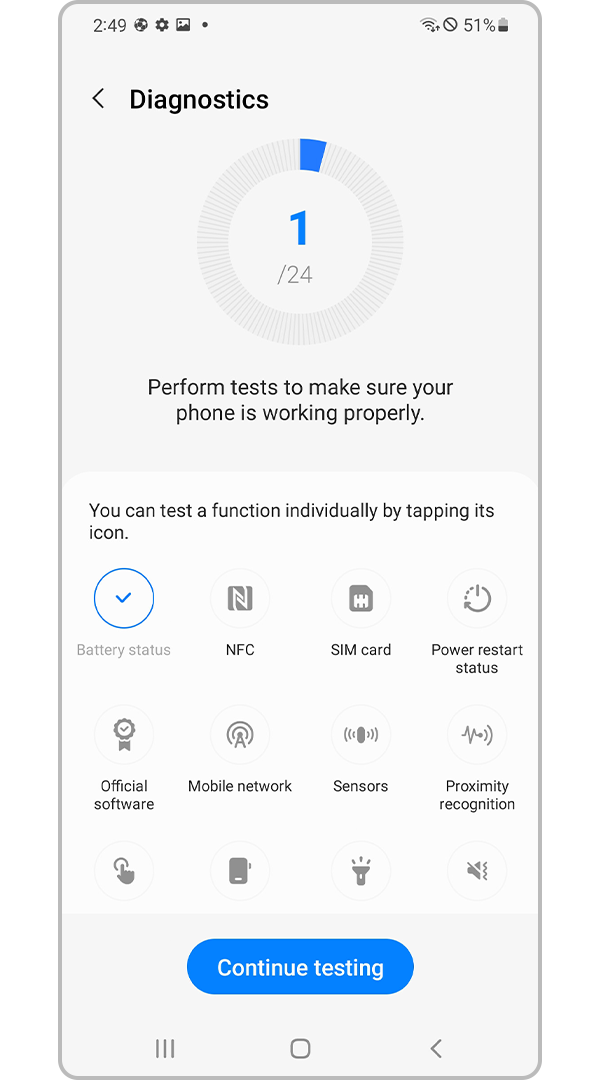
Samsung have developed and update the device care option which lets user check their battery details. Now users can also diagnose their mobile using this option. 


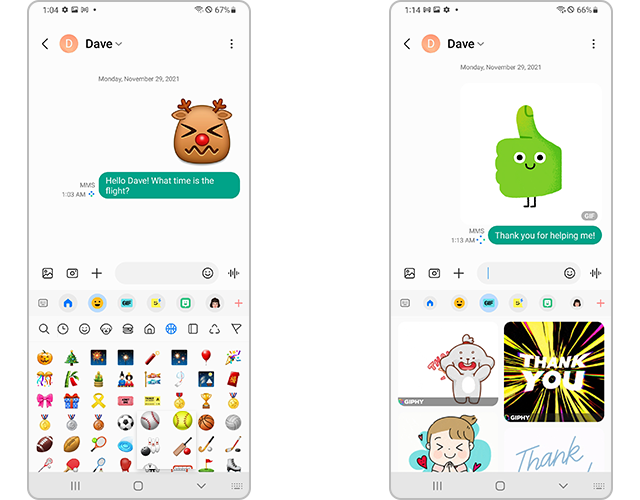
Keyboard Function :

Now you can use wide variety of stickers and emoji's along with GIFs in chats


PIP (Picture in Picture) Mode :

Simply, this is the feature with which you can play a video overlay on your screen with minimized screen it is use since long time, with this update samsung updated this feature to resize and change place of the video on your screen.


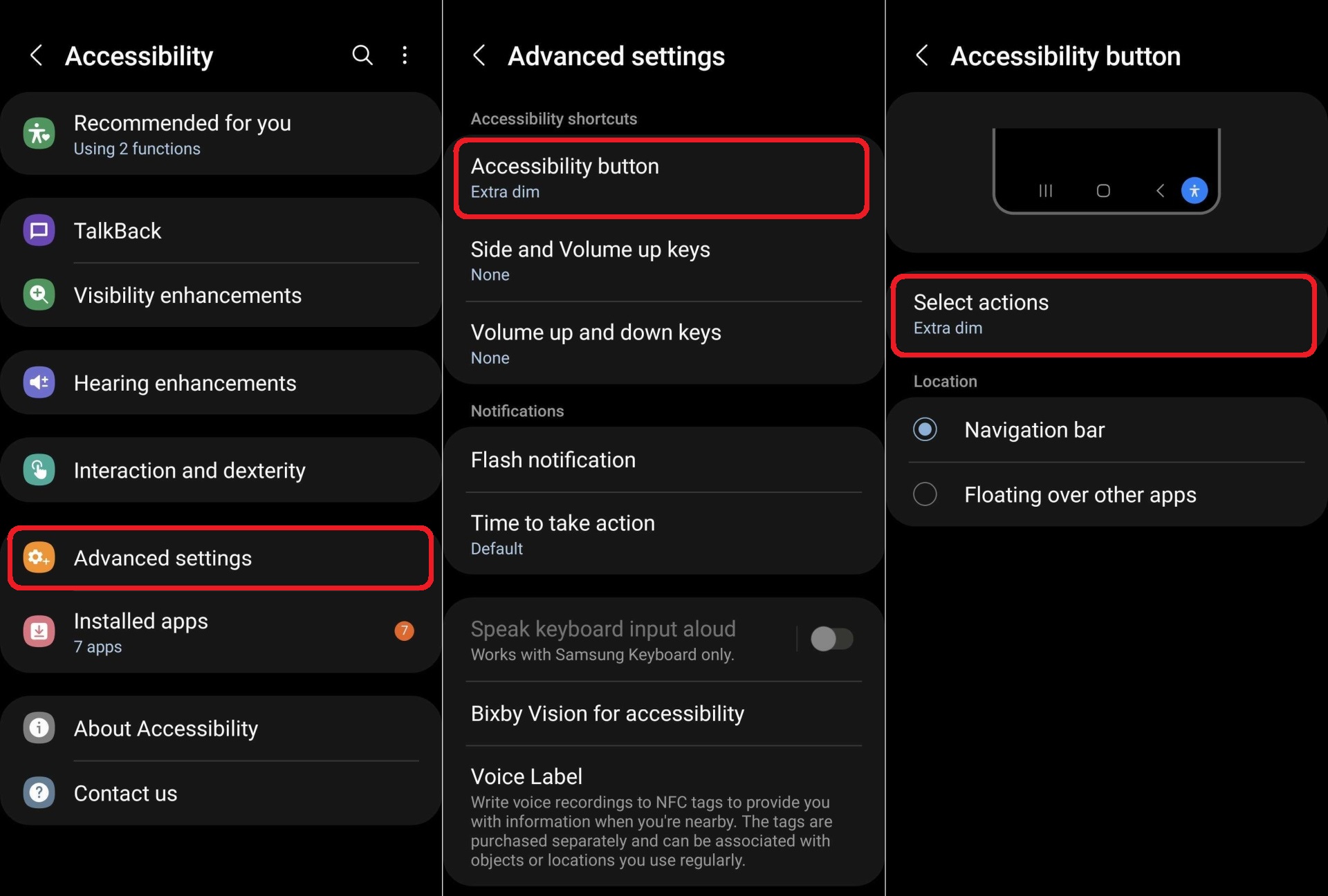
Extra Dim : 

This is the another feature which is introduced in Android 12 and samsung also used the same and added in Accessibility which will reduce screen brightness extra while using the mobile at night times.


These all are the highlighted features of Samsung's One UI 4.0 and there some few features which are small updates here they are :

Lock screen

With latest update you can change the audio output to a different device, like headphones or a speaker, right from the Lock screen.

A new Voice Recorder widget for the Lock screen lets you record voice memos without unlocking your phone.

A monthly calendar appears on the Calendar widget to help you keep track of your events from the 
Lock screen.


Always On Display

You can set the Always On Display turn on whenever you receive a notification.
New animated stickers are available.


AR Emoji

Now you can use an AR emoji as your profile picture in Contacts and Samsung account. You can choose from over 10 poses or create your own expressions.

Use your own drawings to create unique clothes for your AR emojis.

New AR emoji stickers that show only your face have been added.

Make cool dance videos with your AR emojis. Choose templates as well.


Quick panel

You can manage your notifications more comfortably with an enhanced layout and an integrated section of alert and silent notifications.

The brightness bar in the quick panel is larger so it’s easier to see and adjust.


Settings

Improved search features help you find the settings you need, when you need them. You’ll get 

The new Safety and emergency menu lets you manage your emergency contacts and safety information all in one place.

Dark mode

Wallpapers, icons, and illustrations are now darkened automatically to provide a more consistent look and more comfort for your eyes.

Charging effects

New visual effects appear when you start charging to help you check the charging speed.

Tips

Preview videos now appear when you enter the Tips app, helping you learn everything your Galaxy can do.

Sharing

You can customize the list of apps that appear on the share panel to reduce clutter, and scroll left and right across the lists of apps and people for quicker access.

When you try to share pictures that have problems like poor focus or framing, you’ll get suggestions for fixing them so your pictures always look their best.

Camera

Enjoy a simpler, clearer layout with a preview that shows only the information you need. The scene optimizer button will only appear in Photo mode if there’s low light or you’re scanning a document. 

Settings for Portrait and Night modes are now more intuitive.

Lens and zoom: See the zoom level on the lens icons for easier zooming, even in modes that only support one lens.

Video that never misses a moment: Recording now starts immediately after you press the Record button, instead of when you release it. In Photo mode, touch and hold the Shutter button to start recording a video. Drag your finger to the Lock icon to continue recording without having to hold down the button.

Single take: Add extra time while recording in Single Take so you don’t miss key moments. After recording is finished, the content selection menu has been improved to help you easily choose the perfect shots.

Pro mode: Settings have been reorganized for a cleaner look. When grid lines are on, horizontal level indicators help you line up the perfect shot.

Enhanced scan features: After scanning a document, you can zoom in for fine editing. When you scan a QR code, you can choose from several options depending on the type of QR code.

Gallery

Stories now show a video preview on the cover and a highlight video inside. You can also see where each picture in a story was taken on a map.

More options are available for sorting albums that contain lots of photos.

Album covers are now shown at the top of the screen when you open albums.

Search suggestions have been improved to help you find pictures and videos. Recent searches are also suggested.

Remastered pictures can be reverted to their original versions at any time, even after they’re saved.

You can now edit the date, time, and location that pictures and videos were taken.

Photo and video editor

Add fun emojis and stickers to your pictures and videos.

Create video collages by combining multiple images and videos from your Gallery.

The new Light balance option lets you edit the tone of pictures more easily.

The Highlight reel editor has also been enhanced to give you even more control.

Revert edited videos back to their original versions at any time, even after they’re saved.

Cut out a face, pet, building, or any other object from a photo and paste it onto a different one.


Multitasking

Pin the window option menu to the top of a pop-up window to make it easier to access.

Easily resize picture-in-picture windows with pinch zoom.

Keep your current app in view while using edge panels. Blurring has been removed to help you see more at once.


Digital Wellbeing

Keep your eyes on the road with the new Driving monitor. You’ll get reports on how much you used your phone and which apps you used.

Clock

The dual clock widget now shows different background colors for each city depending on whether it’s day or night.

Calendar

The new Calendar layout lets you add events instantly. You can also find events more easily with improved search features.

A new Home screen widget shows your monthly calendar along with today’s events.

Create shared calendars and invite other Galaxy users to join.

Messages

Photos, videos, web links, and other content will now appear in search results in the Messages app.

Device Care

The main screen shows battery and security issues, making it easier to solve problems quickly.

Your phone’s overall status is shown as an emoji, helping you check the status at a glance.

Now you can get right to Samsung Members diagnostics from Device Care. If something seems wrong with your phone, try the diagnostic tests to find out what the problem is and get suggestions for solving it.


Bixby Routines

More conditions are available for your routines. Start a routine during a call or when a certain notification arrives.

Make your routines do more. You can now turn on Enhanced processing with a routine. There are also more options for connecting and disconnecting Bluetooth devices.

Reorder actions by touching and holding actions on the edit page. Advanced options have also been added to let you wait before an action starts, confirm actions, and more.

We’ve removed restrictions for some combinations of conditions and actions so you can do even more with your routines.

Create custom icons for your routines using the camera or an image from gallery.

Accessibility

Perform actions more quickly by moving your mouse pointer to one of the 4 corners of the screen.

Adjust contrast and size at the same time with custom Display mode (High contrast or Large display).

Access accessibility features more quickly with a floating button that’s always available.

More visibility options are available to meet your needs. You can reduce transparency and blur or make 
the screen extra dim.

Set different colors for each app’s notifications so you can easily determine where notifications are coming from.

Magnifier window has been merged with the new Magnification menu, giving you more options and more control for magnifying content on the screen.

Samsung Health

A new tab layout at the bottom of the screen helps you access the features you need more easily. The new My page tab shows your profile, weekly summary, badges, and personal bests.

For your gender selection, you can now choose “Other” or “Prefer not to say.”

It’s now easier to invite your friends to team challenges by sending a link. Additional snacks have been added to the food tracker.

Privacy

See which apps are accessing sensitive permissions such as Location, Camera, or Microphone in 

Permission usage history. You can deny permissions for any apps you don’t feel comfortable with.

A green dot will appear in the upper right corner of the screen when any app is using the camera or microphone so you can see if an app is recording you without your consent. You can also use quick panel controls to temporarily block all apps from using the camera or microphone.

Take more control over apps that want to access your location. For apps that only need to know your general area, such as weather apps, you can allow access to your approximate location so they can’t determine exactly where you are.

Sometimes you need to copy sensitive information, like passwords or credit card numbers, but you don’t want it to fall into the wrong hands. You can choose to be notified any time an app accesses content copied to the clipboard in another app. 

My Files

Search features have been improved. You can still find the files you’re looking for, even if there’s a typo.

The Recent files area has been expanded to help you more easily find files you’ve used recently.
Samsung Internet

Get more search suggestions when you enter text in the address bar. Results will appear with an all new design.

The new search widget helps you find what you’re looking for, right from the Home screen.

To protect your privacy, Samsung Internet will automatically start in Secret mode if you were using Secret mode during your last browsing session.


These are the features and upgrades of samsung's One UI 4.0, check when your device getting this update from here. 


That's for the story guys, Hope you get required information. If you need any information regarding Tech you can ask us in comments or through any of our social handles and you can get update about latest articles in social handles as well.

 Possible Releases in Apple Event in March :


Apple, One of the largest and widely known brands in the world, Apple possibly conduct 2 launch events every year to unveil their products. In the same way a rumor is making rounds is that Apple is going to conduct a launch event in March month and launch some of their products. We can also guess that apple is going to launch their next generation apple iPhone SE, Here is what we know so far about this rumor.

iPhone SE 3 :

As per reports Apple is going to launch their Next gen iPhone SE 3 which is a Successor of iPhone SE 2020 mobile. There are rumors making sounds in corners is that new iPhone SE may comes with iPhone X like notch display with A15 bionic chipset which one of the most powerful chipsets in mobile devices. You can expect this version with 5G network support and also price may be under started around 40k which makes device as affordable device.


New iPad Air :

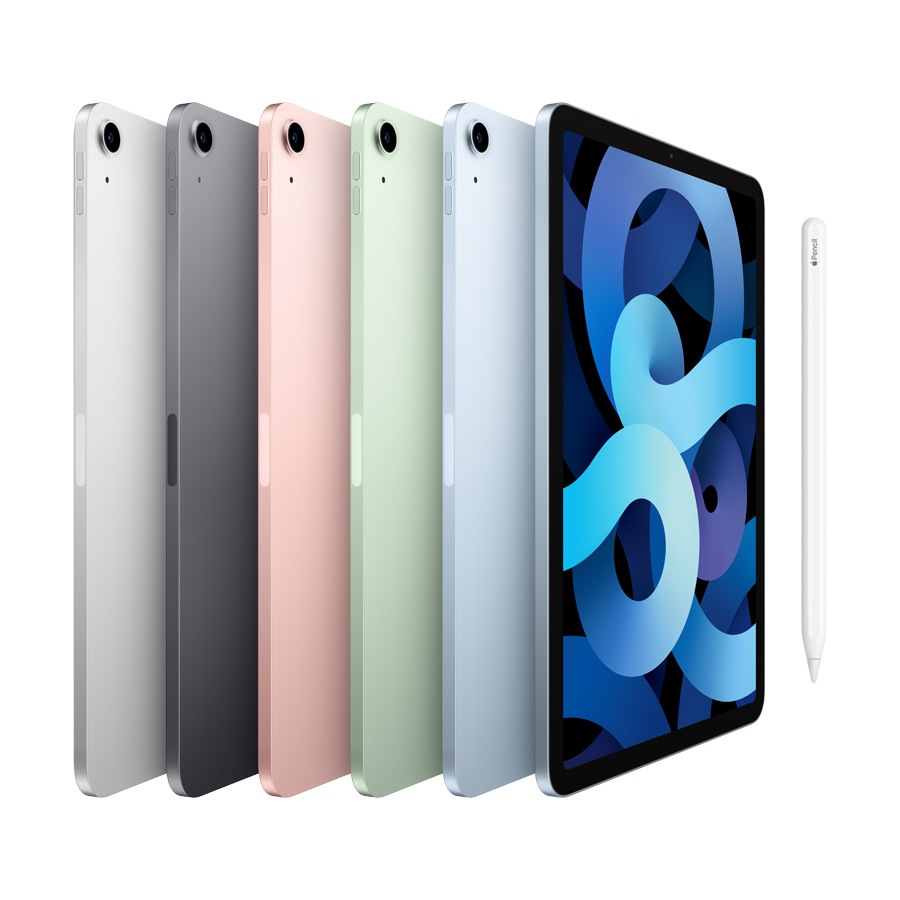
Along with iPhone SE 3 apple possibly may launch their iPad Air, for now there isn't any confirmed specs for this but apple will launch an upgraded version of iPad air for sure, We have to wait till official notice by Apple about this.


All New Mac :

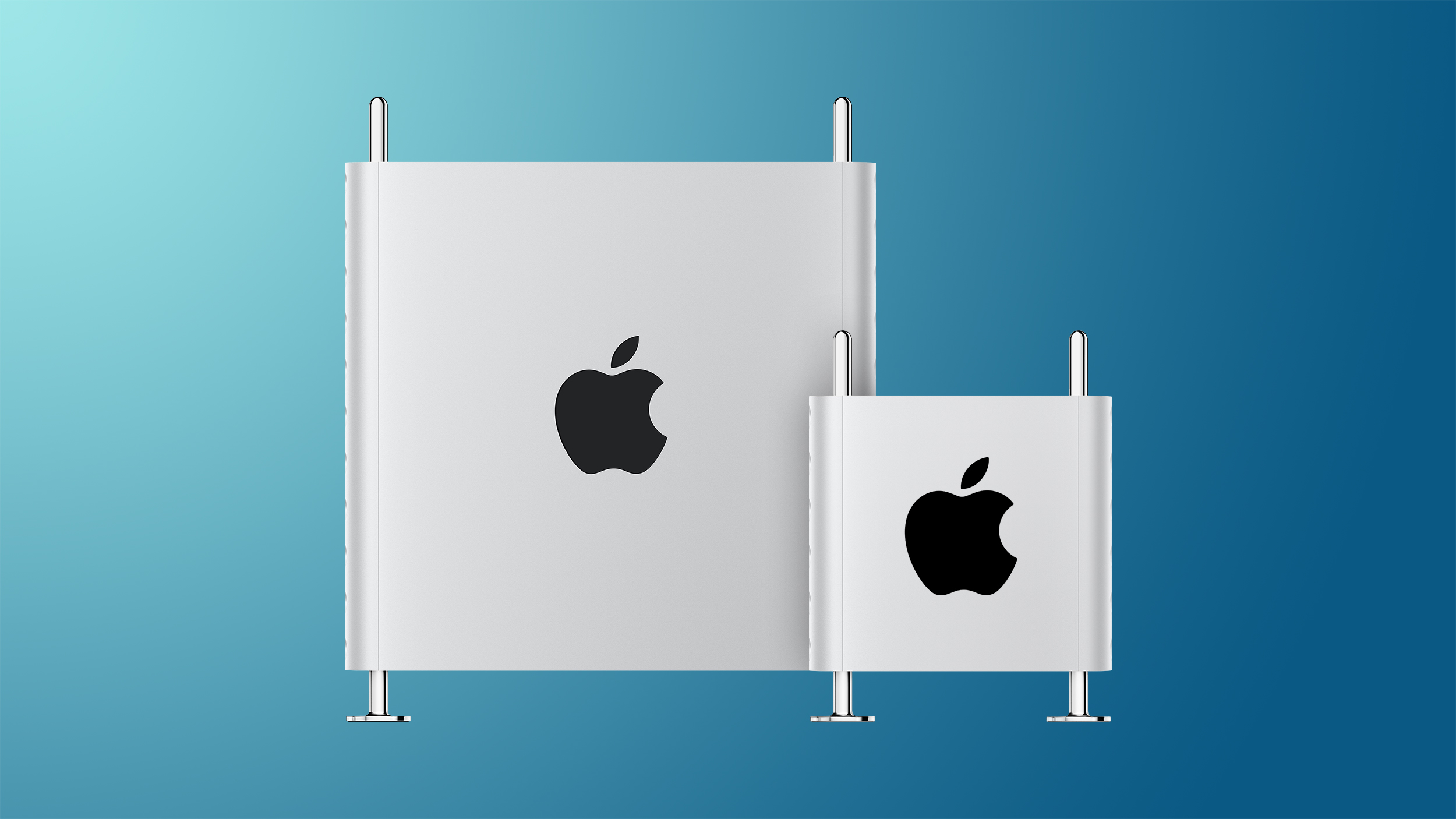
The rumors about an all new Mac with Apple's custom Silicon is making more noise from many days, we have to wait and watch whether apple may conduct an event and launch these products.


These are all the products rumored to be launched in an apple event which may be happened around March 8th of this year, So have look on our blog and on apple to get latest updates about this.


That's for now, Hope you find this information useful. have look at out social handles and if you want in any of our group in social and messaging apps which let you know about all out publishes. 

Newer Posts
Older Posts

Subscribe To

Posts
Atom
Posts
All Comments
Atom
All Comments

Follow us on

Popular Posts

  • IOS 15 : All you need to know about Apple Mobiles New Operating System
      A s we all know that IOS is the exclusive operating system developed by and used by Apple Mobiles  now as per the annual update we have IO...
  • Process to get Early Access to Task Mate app in India
      Here is how to get Access to Task Mate app : All you need to know about Task Mate app in India      As per reported information Task Mate ...
  • Hidden Features, Tips and Tricks of Facebook
       Hidden Features Of Facebook You Must Know   Facebook: is the social media platform everyone uses, but just don’t lay behind in social med...

Labels

Android (3) Android app (6) Color OS (2) Early-Access (1) Funtouch OS (1) Gadgets (2) Harmony OS (1) How to Guide (8) IOS (4) IOS app (4) MI UI (1) New Releases (10) One UI (2) Oxygen OS (1) Rumoured (3) Tech News (12) Updated Notes (4) Windows 10 (4) Windows 11 (6)

recent posts

Blog Archive

  • ▼  2022 (66)
    • ▼  February (29)
      • Feb 12 (1)
      • Feb 11 (1)
      • Feb 10 (2)
      • Feb 09 (5)
      • Feb 08 (2)
      • Feb 07 (2)
      • Feb 06 (2)
      • Feb 05 (2)
      • Feb 04 (1)
      • Feb 03 (1)
      • Feb 02 (4)
      • Feb 01 (6)
    • ►  January (37)
      • Jan 31 (3)
      • Jan 30 (2)
      • Jan 29 (4)
      • Jan 28 (4)
      • Jan 27 (11)
      • Jan 26 (5)
      • Jan 25 (8)

Created with by TechEra