• Home
  • Mobile
    • OS
      • Android
      • Apple IOS
      • One UI (Samsung)
      • Color OS (OPPO)
      • Funtouch OS (Vivo)
      • MI UI (Xiaomi)
      • Harmony OS (Huawei)
      • Oxygen OS (Oneplus)
    • New Releases
    • Gadgets
    • Rumoured
    • Update Notes
  • PC
    • Windows 10
    • Windows 11
  • Tech News
  • Apps
    • Android
    • IOS
    • Early Access
  • How to Guide
  • More
    • About us
    • Contact us
    • Privacy Policy
    • DMCA
*Welcome Everyone please note that out site has been moved to the New link with dedicated domain you can navigate Click Here to access our site all content will be found there and new content is being posted there as well.
*Click Here to go to New Site

 About Apple's Emergency update : 


Many users choose Apple because of it's Security provided by Company which gives utmost important to user privacy and security. In this Technically Advanced Era anytime any device may effect with unknows flaws in it. Likewise Apple devices have some flaws too but every time apple acts fast and succeed in fixing the issues.

Apple Released iOS 15.3.1 for Mobile devices, iPad OS 15.3.1 for iPads and Mac OS 12.2.1 for PC devices which fixes a critical Webkit zero-day vulnerability.

Apple Stated the details about this update as :


About Issue : 

Webkit is Apple's web Rendering Engine which is used not only used by Safari (Apple's Native browser) but every browser in your Apple device which gives trouble to users which allows attackers to run anything on the device.

Apple also pushed Safari 15.3 update for macOS Big Sur (build number 16612.4.9.1.8) and macOS Catalina (build number 15612.4.9.1.8). The iOS 15.3.1 update also fixes a small issue that could cause Braille displays to stop responding.


As this update is necessary update your devices accordingly to avoid Security Breaches.

We already know that apple had released it's latest update to users and Now apple started releasing it's first developer beta releases of iOS 15.4, iPadOS 15.4, and macOS Monterey 12.3. Among these updates there one of the biggest updates is that the latest beta release of iOS 15.4 brings the ability to unlock your iPhone using Face ID while wearing a mask. The beta releases of iPadOS 15.4 and macOS 12.3, and also  include the delayed Universal Control to enhance the experience for users who own both iPad and Mac devices.

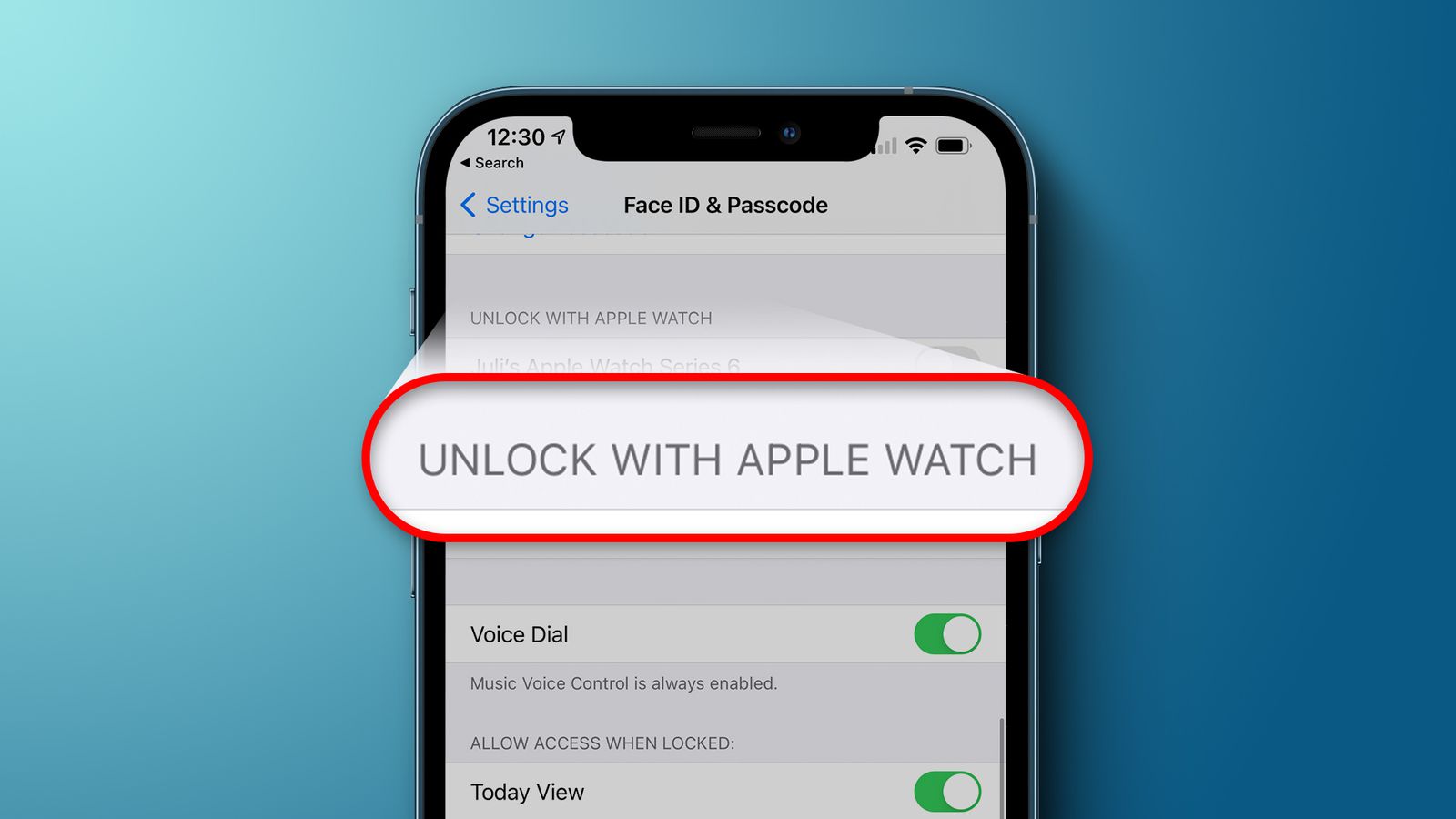
With the ability to unlock an iPhone using Face ID with a mask, Apple has upgraded its proprietary facial recognition technology. This feature is the the most requested features as people are wearing face masks since the beginning of the COVID-19. Apple tried to resolve the problem of not recognizing people through Face ID while they wear a mask in the past as well. So, it enabled a faster way to unlock using passcodes when wearing masks on devices that have Face ID support. The company also last year provided the ability to unlock Face ID-equipped iPhone models using an Apple Watch when wearing masks but that doesn't resolved issue in great extent.


Apple has introduced new algorithms to recognize users based on their eyes area when wearing a mask. This enables users to unlock their iPhone using Face ID, without putting off their masks. Users  who have access to this beta version can get the option to set up using Face ID with a mask when they boot their iPhone running iOS 15.4 for the first time. Alternatively, the feature can be enabled after booting with iOS 15.4 by using the option called ‘Use Face ID With a Mask' that is available under Settings > Face ID & Passcode.


While enrolling for facial recognition through this option, you don't need to wear a face mask. So, the experience of enrolling for Face ID with a mask is similar to how you normally enroll for the facial recognition technology. Apple has also designed the feature to work with glasses. However, you are recommended to separate enroll for your glasses when setting up Face ID with a mask. You can use up to four pairs of glasses with each enrolled appearance.


It is important to note that although Face ID is available on iPhone X and later models, the feature to use Face ID with a mask is limited to iPhone 12 and newer versions of the iPhone. It is also not available to iPad users at this moment.

Apple claims that the accuracy and security of Face ID with mask is aligning with existing facial recognition support. This means that the probability that a random person in the population could look at your iPhone and unlock it using Face ID with a mask is approximately one in 1,000,000 with a single enrolled appearance. Along with Face ID update, the first developer beta of iOS 15.4 brings the ability to copy text from objects using the camera while in the Notes and Reminders apps. There are also new emoji such as heart hands, biting lip, pregnant person and pregnant man, and several others.

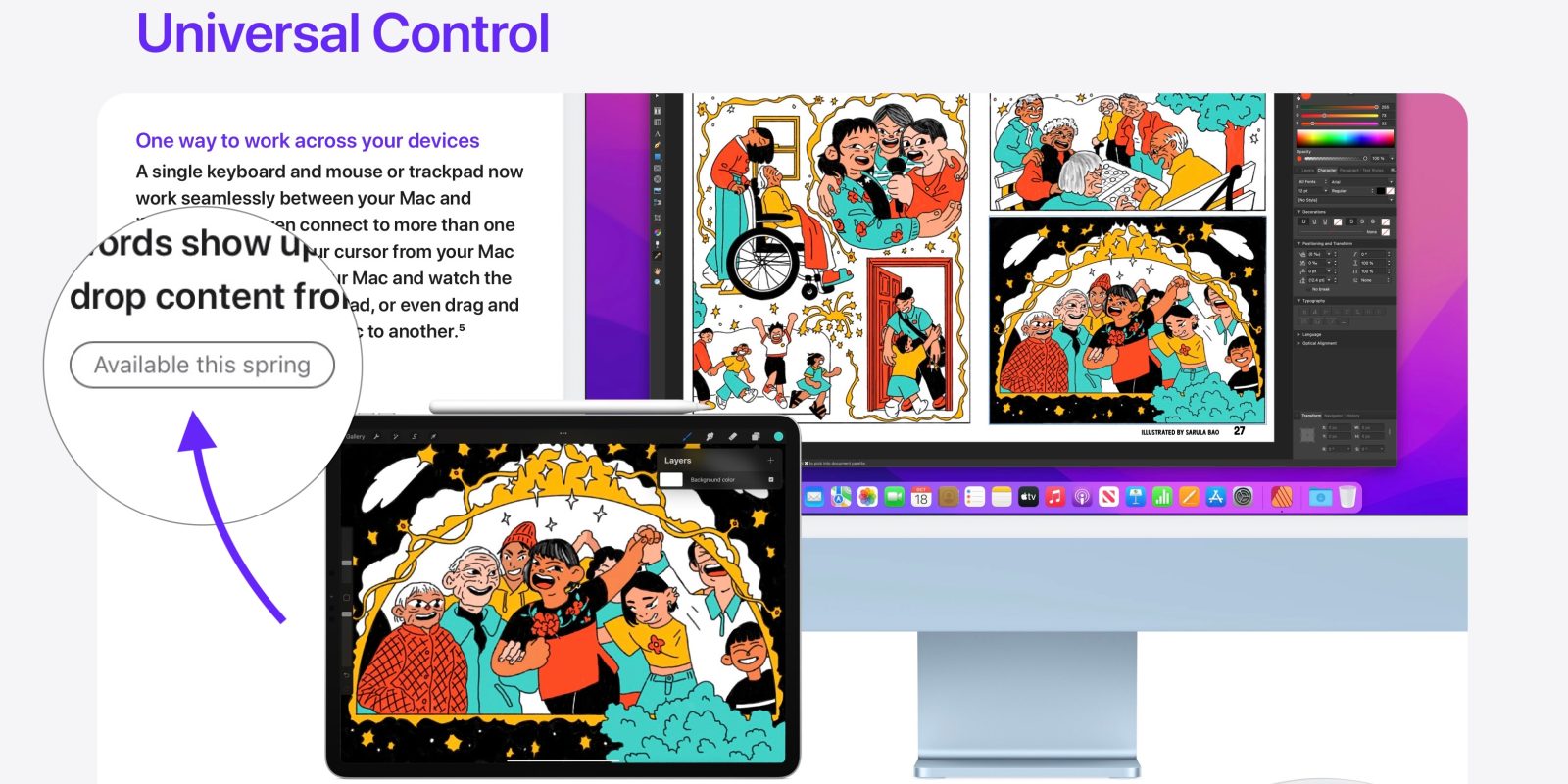
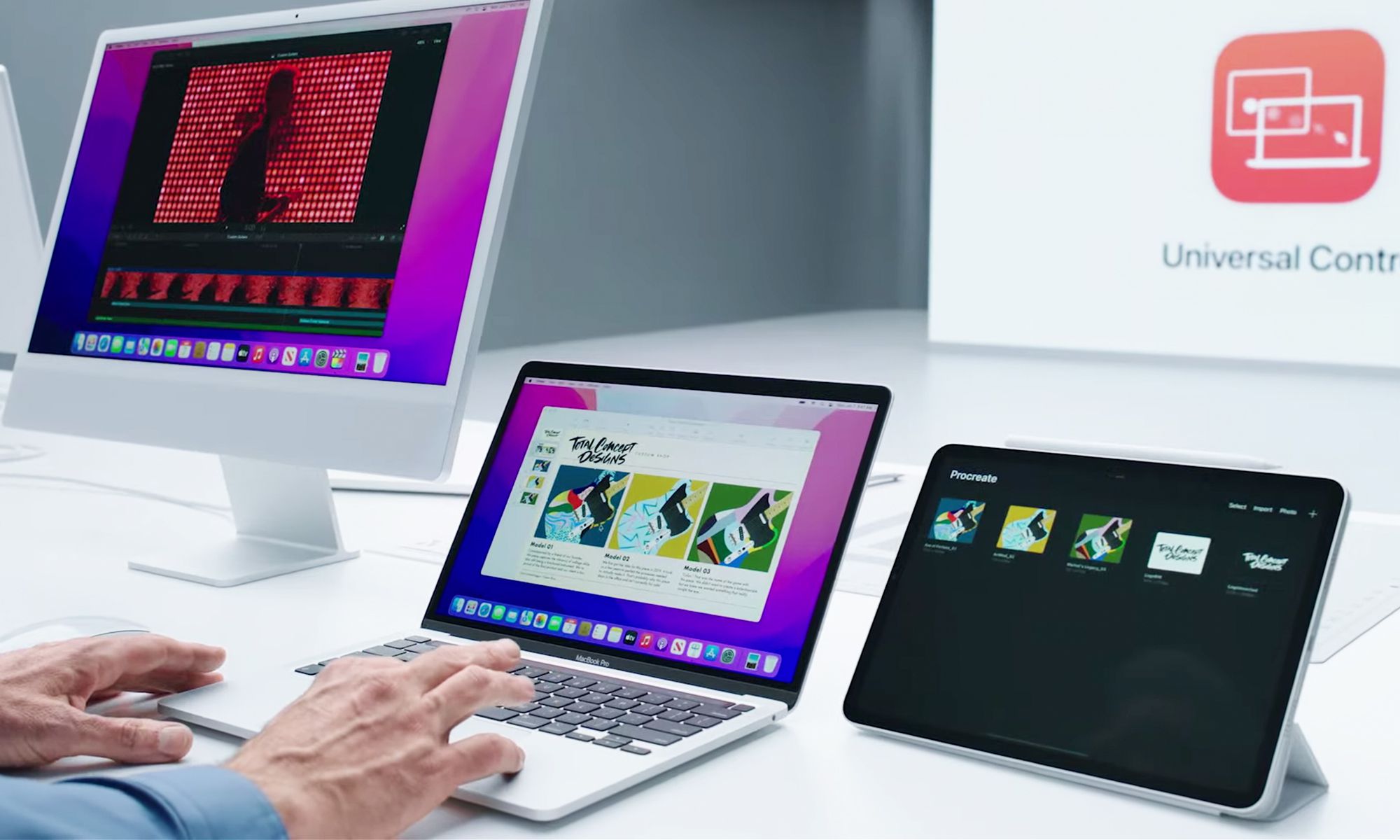
Alongside the beta release for iPhone users, Apple has brought the first developer beta release of iPadOS 15.4 and macOS Monterey 12.3 with Universal Control. This feature was announced at the WWDC last year and was expected to be a part of macOS Monterey at the time of its first release in October.


As Apple said that with Universal Control, a single keyboard and mouse or trackpad can work seamlessly between your Mac and iPad. You can also connect to more than one Mac or iPad at once and move your cursor between them or type your words either on your Mac or iPad. Further, the feature allows users to even drag and drop content from one Mac to another which is an awesome feature. Universal Control uses Apple's Continuity to establish a connection between your Mac and iPad. In this case you need both devices to use a single Apple ID. The devices on which you want to use Universal Control must also be within a few metres of each other and must have Bluetooth, Wi-Fi, and Handoff turned on.


The company is enabling a connection between Mac and iPad devices also did it in the past as well, by bringing Sidecar as a feature to let users use their iPad as a secondary display or input device. However, Universal Control goes a step beyond and enables users to control both Mac and iPad using a single keyboard, mouse, or trackpad.


As of now,  Apple has not provided an exact timeline on availability of  the features to the public. But still, you can experience them by signing up for the public beta releases of the new software through the Apple Beta program.


That's for the story guys, Hope you guys liked our content. If you have any suggestions, views anything else to connect us through contact us page and also you guys have comments box below, it's all yours.


 As we all know that IOS is the exclusive operating system developed by and used by Apple Mobiles now as per the annual update we have IOS 15 most recent released on 12th Jan 2021 V15.2.1 .  iOS 15 is the fifteenth and current major release of the iOS mobile operating system developed by Apple for its iPhone and iPod Touch lines of products. It was announced at the company's Worldwide Developers Conference on June 7, 2021, as the successor to iOS 14, and released to the public on September 20, 2021.


Features :

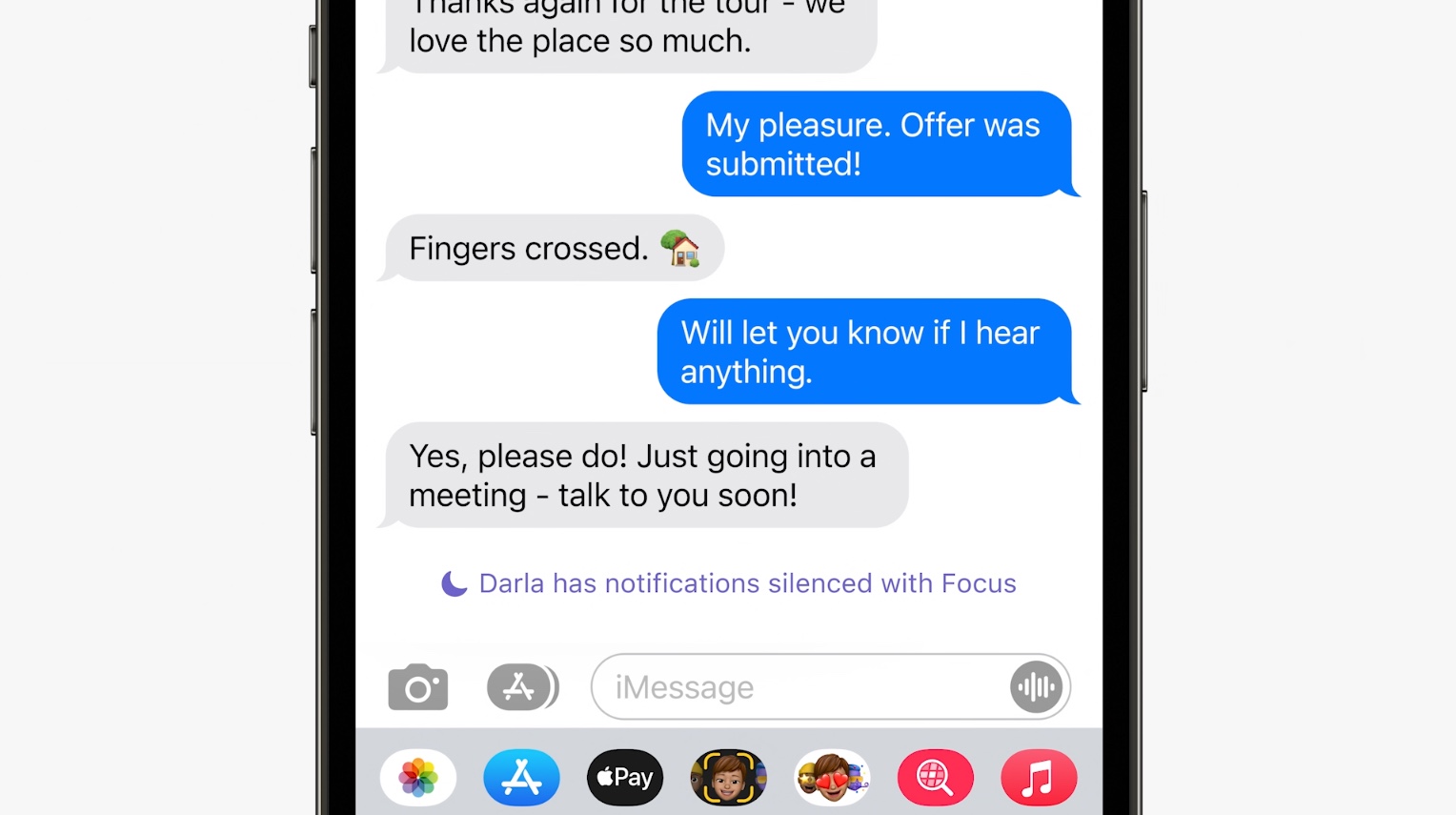
Focus

The Focus allows users to set their "state," such as work, sleep, do not disturb or a custom focus. Based on the selected state, users can set the type of notification they want to receive and from which application. It is also possible to choose which pages and then apps to show on the Home based on the state. The state can change automatically based on where the user is or a time.

Focus also controls the interactions with Contacts, so it is possible to decide which specific contacts can "disturb" the user.


Some Lock Screen settings can be controlled based on the state: for example, the Dim Lock Screen feature, which darkens the lock screen from not showing notifications on that screen, can be automatically turned on or off based on the state.

Focus is synchronized automatically across different iOS and macOS devices on the same iCloud account, as well as any paired watchOS devices.

Notifications :

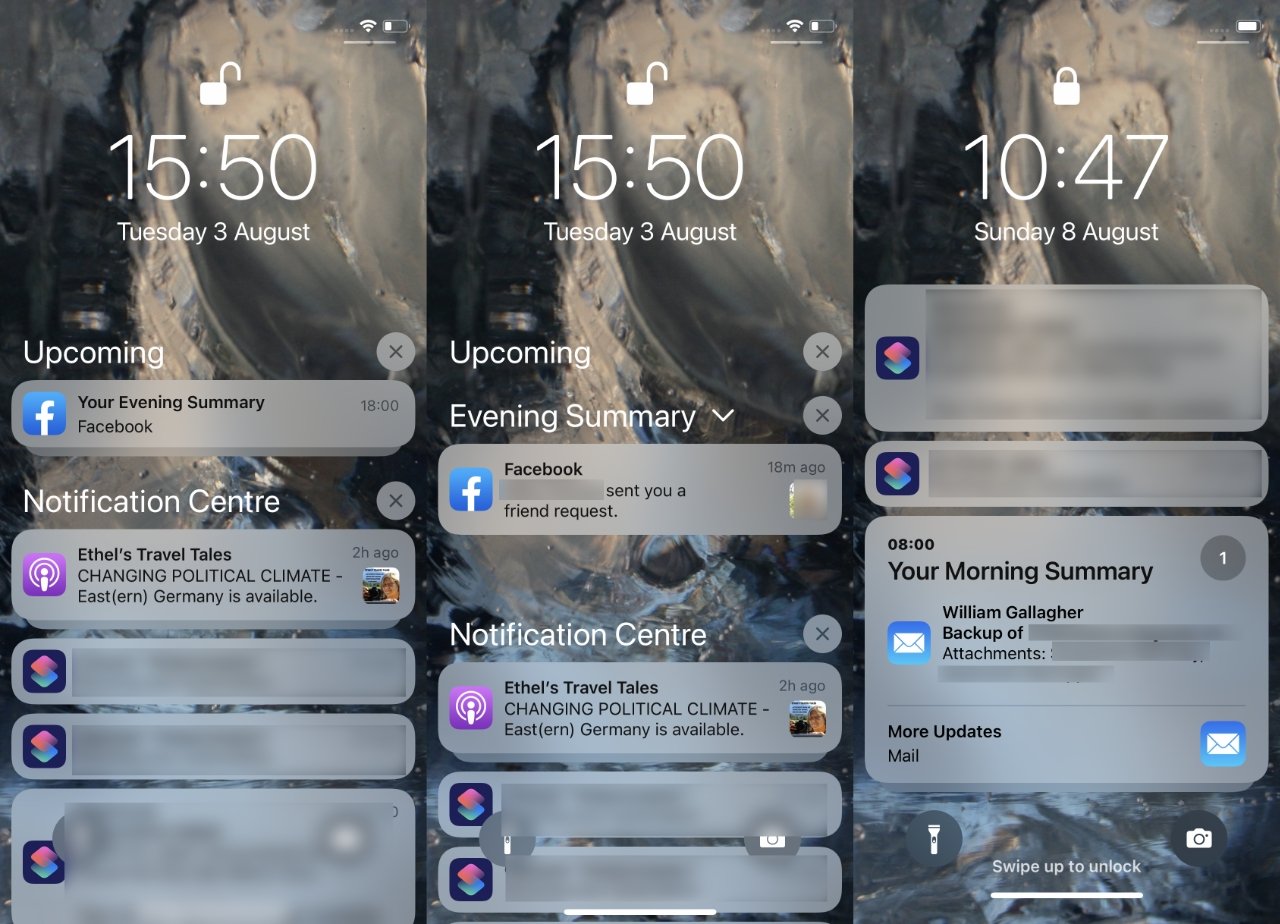
Notifications receive a new look with contact photos for all communication apps and larger app icons. When the notification arrives, the user can mute the corresponding app for one hour or all the day.


The Summary allows the user to group and postpone the notifications coming from the chosen apps, delivering them at a scheduled time in a single big notification called summary notification.

Live Text :

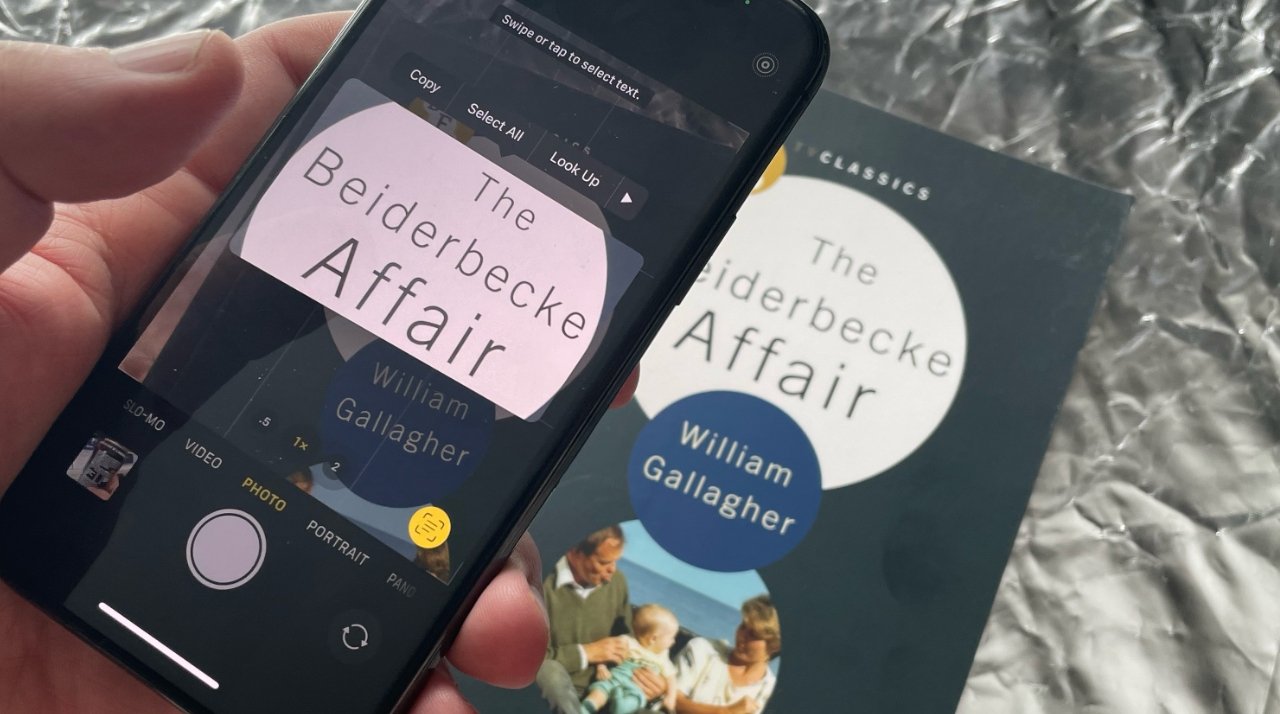
Devices with an A12 chip or newer support Live Text in all apps which can transcribe text from the camera in the real world, images, photos through Artificial Intelligence text recognition using the Neural Engine.


Smart stacks with suggested Widgets :

The Widgets in iOS 15 are more dynamic: depending on the context, the system can add or remove widgets to existing stacks. For example, near the start of a certain event in the Calendar, the system can decide to add the Calendar Widget to an existing smart stack, if it is not already present, and then remove it at the end of the event.


Cross-App Drag and Drop :

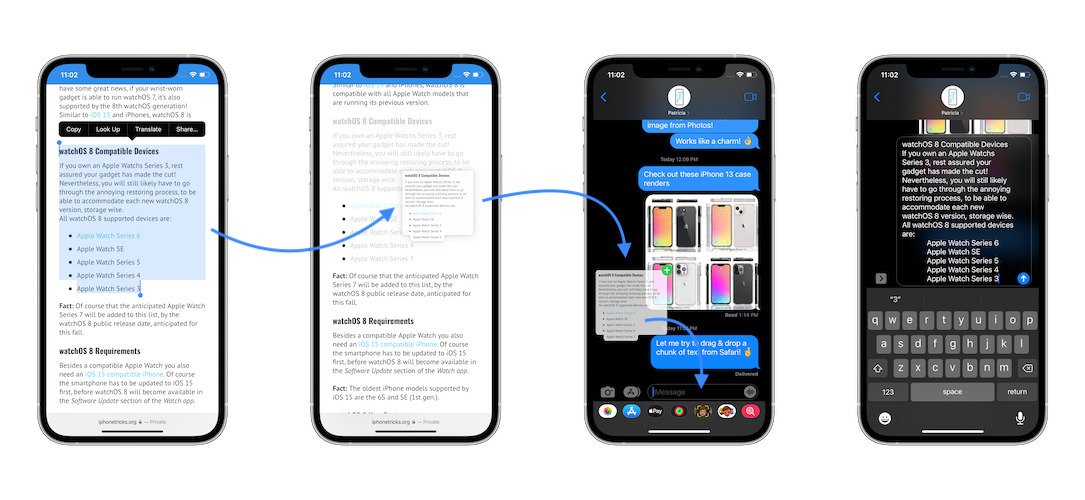
Users can now drag pictures and text from one app to another. This feature was previously only available in iPadOS.


Home

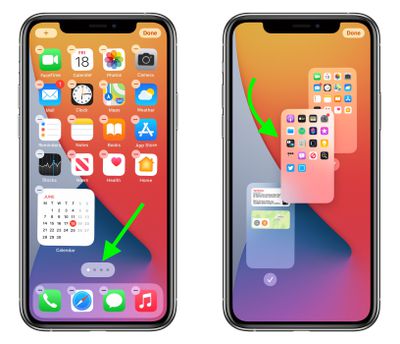
Users can now reorder or delete the various Home screens and hide or limit selected Home screens using Focus mode.


Per-App Text Size :

From the Control Center, the text size can be set per app.

Spotlight :

The global search function has been enhanced and it is also available on the lock screen by pulling the page down.

Dictation :

Formerly limited to 60 seconds, the Voice-To-Text dictation available in the keyboard is unlimited.

System-wide translation :

System-wide translation allows the user to translate text in all apps by selecting it and tapping on the Translate option.

Adjust video playback speed

The system default player, used for videos and by many apps, has the control to adjust the playback speed.

Video Effects and Mic Mode

Video Effects and Mic Mode are two new commands in the Control center that allow the user to add Portrait effect to the camera and set Microphone mode to Voice Isolation on any apps.

Accessibility improvements

Per-App Accessibility: each app can have a different accessibility setting to customize the text (Bold Text, Larger Text, Button Shapes, On/Off Labels, Reduce Transparency), increase contrast, reduce motion, autoplay video-preview, etc.

Image Exploration with VoiceOver: it describes photos to give users with low vision more context about what's displayed on the photo.

Audible charts: the Audio Graphs accessibility framework allows to represent chart data with audio for blind and low-vision people.

iCloud : Backups to iCloud can now also be made on 5G cellular networks.


RealityKit 2 :

The new version allows apps to build more immersive AR experiences using new APIs to capture objects even faster, custom shaders, dynamic assets, custom systems and character control.

Accounts for School and Work :

It is possible to add to the iPhone the accounts of your organization, managed by schools or companies, without having to use external apps or profiles.

StoreKit 2
StoreKit 2 allows apps to implement the "Request a Refund" option in-app. The users can tap this option, select a specific in-app purchase and identify the problem that led to the refund request.[19] It also allows developers monitoring the purchases made by their users without using third-party solutions.

App improvements

FaceTime :

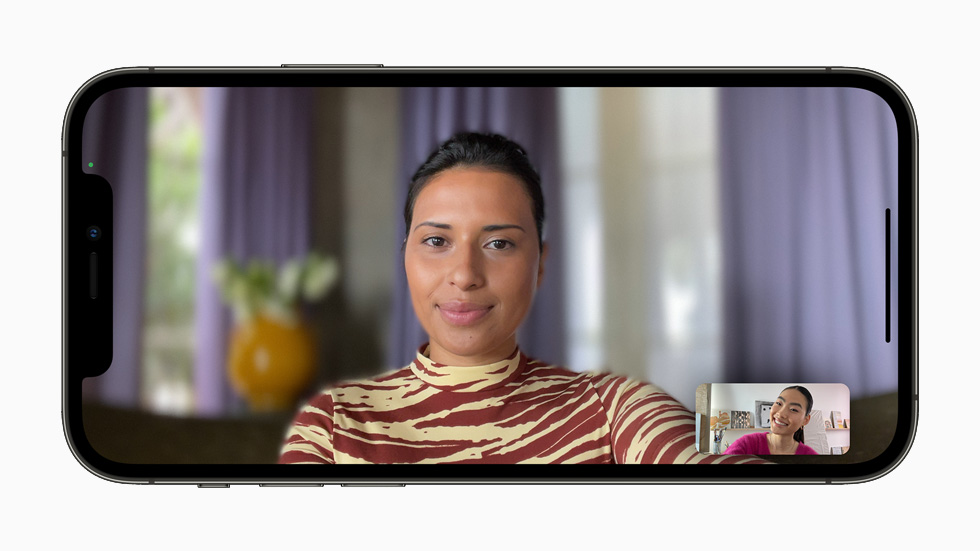
iOS 15 adds several new features to FaceTime including:


Grid view for group conversations
Portrait mode, requires A12 Bionic chip or later
Spatial Audio
Voice isolation mode: remove background noise during calls
Wide spectrum mode
FaceTime links and web integration: Allow Android and Microsoft Windows users to join calls
Calendar integration
Mute alerts, which let users know when they are talking while muted
FaceTime can now take advantage of all rear cameras (on compatible devices)
SharePlay allows you to share your content from compatible video and music apps to a FaceTime call. You can also share your screen to a FaceTime call.

Memoji :

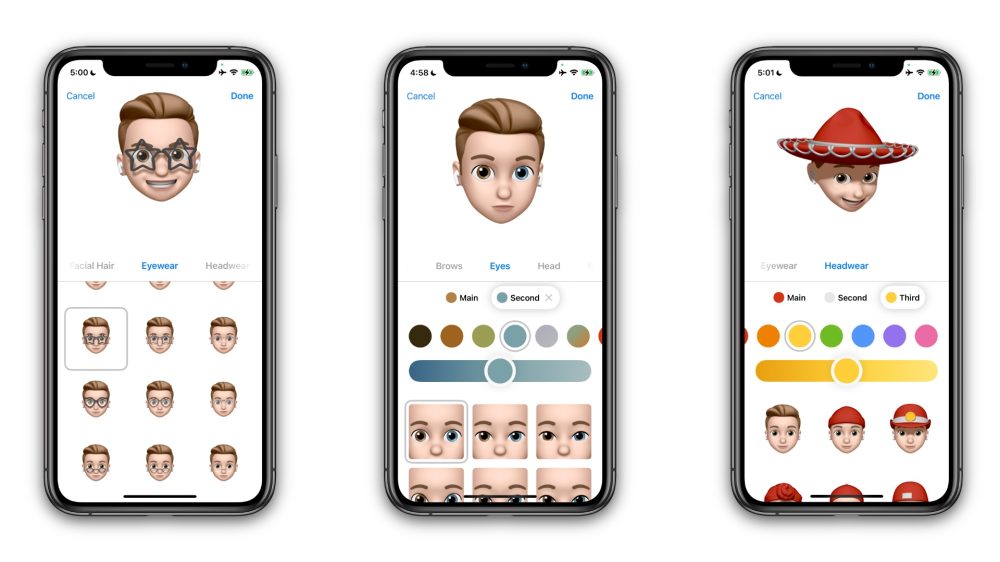
Memoji in iOS 15 have more customization options, including new clothing, two different eye colors, new glasses, new stickers, multicolored headwear, and new accessibility options.


Messages :

Multiple images in stack: messages now displays multiple images in a stack, making them easier to navigate.
Pinned content: it is possible to pin any content, text or link you receive from a contact.
Shared with You: Messages also introduces a new feature called "Shared with You," which organizes links and other content shared via Messages in a dedicated section in their native apps for later viewing (for instance, a news article shared via messages is shown in the News app).


Maps

Apple Maps receives several new features:

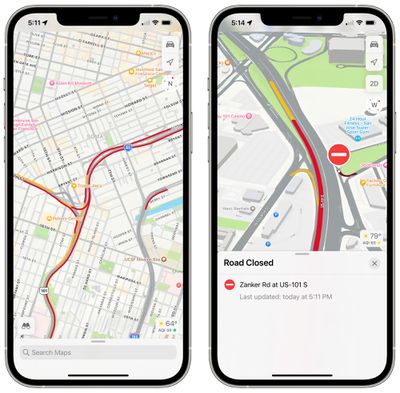
Greater depth has been added to the driving maps with the use of 3D modeling, which will make it easier to interpret directions when faced with roads that go over or under the one being driven on, including buildings, bridges and trees.
3D globe with a new color palette and increased mountain, desert, and forest detail
Increased traffic information, turn lanes, bike, bus and taxi lanes, medians, crosswalks
Walking directions in augmented reality on A12 devices or later
Redesigned place cards
Improved filtering for search
The night mode set in Maps now follows the night mode set in the OS instead of activating it only at night and the colors are improved.
Public Transport Info: public transport routes and times with ability to pin favorite routes to the top. In-app notifications will alert users when they need to get off a bus or train. Transit information can be visible on a connected Apple Watch.
Reports and Reviews: you can report incidents, write reviews and add photos to points of interest, etc.
New features for driving, including a new map where details such as traffic and incidents are highlighted, as well as an itinerary planner that lets you view a future journey by selecting departure or arrival time.


Photos :

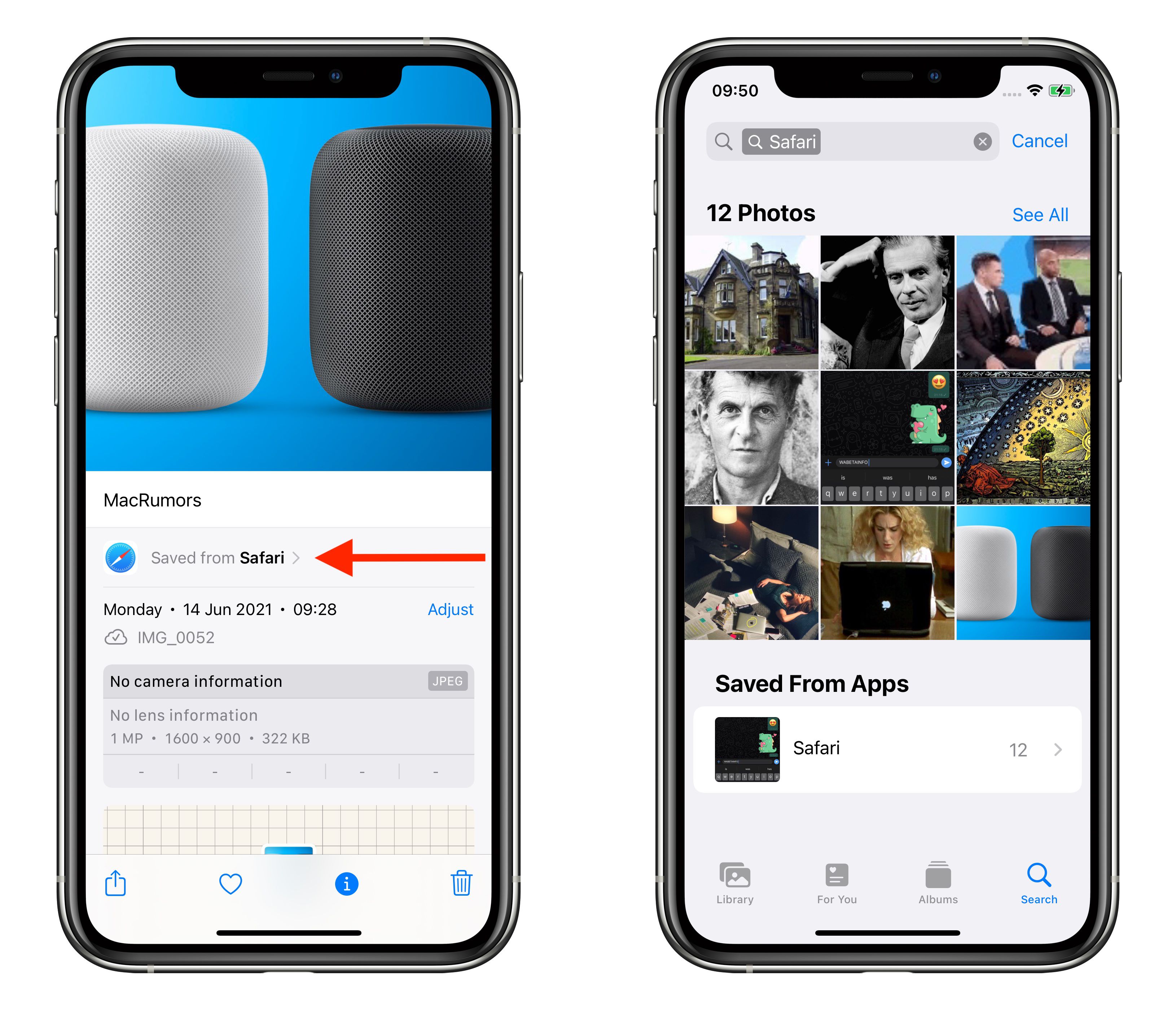
The Photos app can now manually set the time, date, and location of a photo. The app also allows the user to view information about the photo such as the camera used to take the photo and the photo's file size. In the Photos app, the user can now look up places that are inside images, however, this feature only works on the Apple A12 chip and later.


Camera :

Improved panoramic shooting mode on iPhone 12 and above: less geometric distortion in panoramic shots with elongated fields of view, noise and banding reduction that are formed in the image due to changes in brightness and contrast when moving the camera from side to side other, a less blurry and clearer image even when capturing moving subjects within the panorama.


Safari :

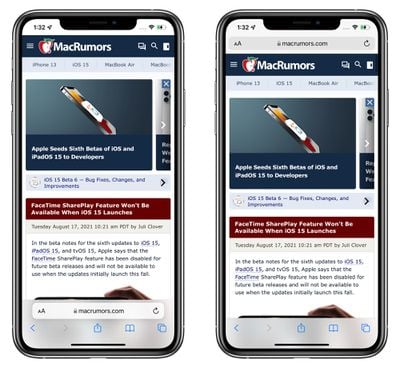
Safari was completely redesigned, moving the tab bar and address bar to the bottom of the screen. It now has tab groups, allowing users to organize tabs and share entire groups of tabs. The user can now use a pull to refresh gesture to refresh a webpage. Browser extensions are available for the first time in Safari for iOS; they are the same extensions available in Safari for the Mac. Safari will automatically upgrade HTTP URLs to HTTPS if compatible. The WebM audio codec is supported.

Safari opens with a new start page; it is possible to have a custom page on startup that contains sections including favorites, most frequently visited sites, Siri suggestions, etc.

App Clips more discoverable: it is possible to show a full-screen preview of the app clip in Safari.


Weather :

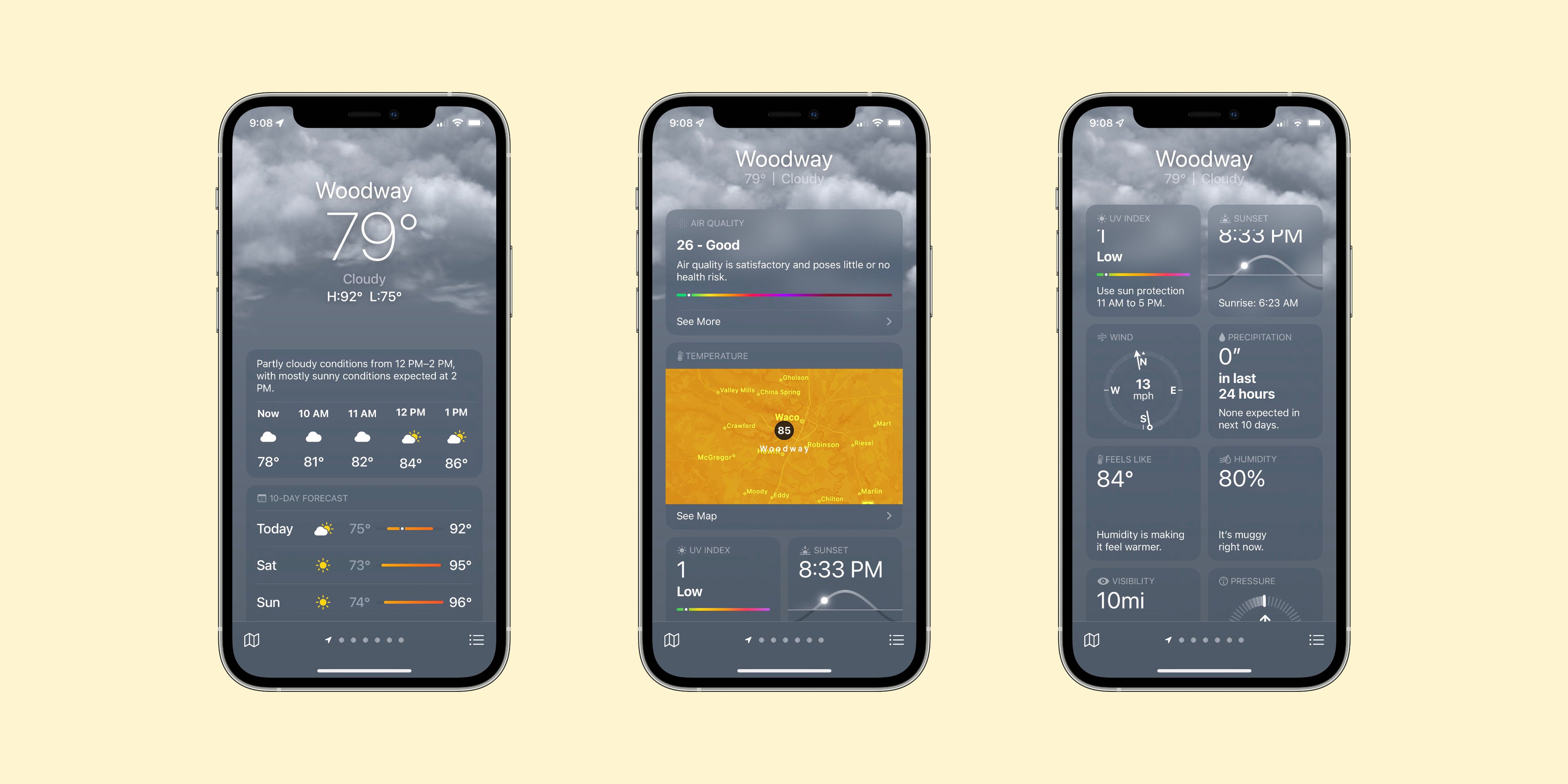
Weather received an overhaul, with new animations and weather maps in full screen, and the weather icon was updated.

Next-time precipitation notifications: you get a notification whenever rain or snow is going to start or stop within the next hour for your current location and each saved location, independently.


Siri :

Siri now works offline, offering shorter response times for the most common requests that do not require an Internet connection. This feature requires a device with a A12 Bionic chip or later.


News :

Apple News has been completely redesigned, featuring more rounded corners.


Share with Siri :

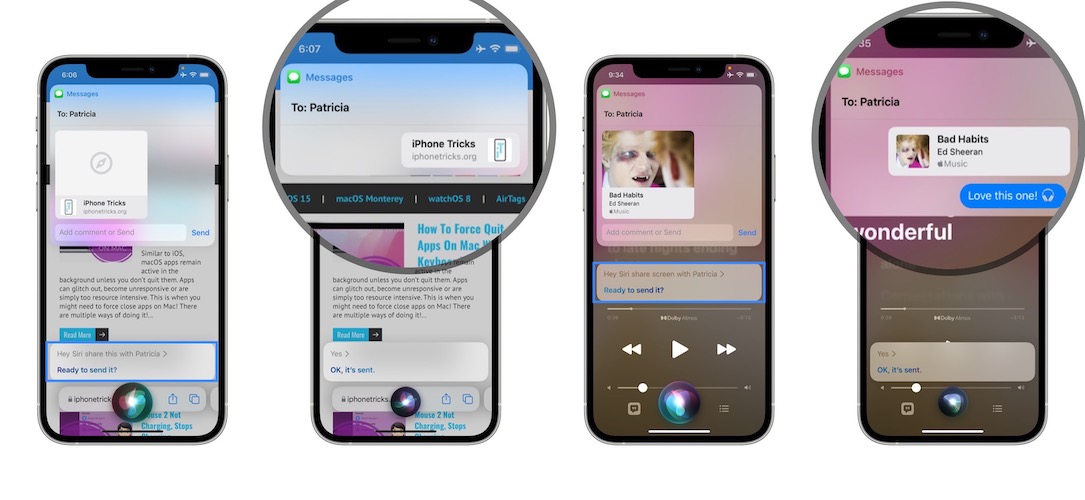
The user can ask Siri “Hey Siri, share this with [name]” (or something similar like “send this to [name]”) and Siri will share the content on the screen to that person using Messages. Items like images, web pages, Apple Music or Podcasts, Apple News stories, and Maps locations will share the actual content (or a link to it). For content Siri can't share, it will warn you that it can only send a screenshot—but Siri will still automatically take that screenshot and drop it in a Message to that person.

Announce Notifications: with announce notifications update in iOS 15, Siri can now read all incoming notifications and even allow users to respond to them using their voice. The user can choose to enable this for specific apps.


Health :

Health data can now be shared.

A new monitored parameter called "Walking Steadiness" has been added, which determines the risk of falling using gyroscopic sensors that measure balance, stability, and coordination.
Added the Trend analysis i.e. horizontal lines that show the trend of the various parameters over the long term.
Lab Results allows you to import laboratory results into the Health app from a healthcare provider.


Files

Groups is a new view mode that groups files of the same type.

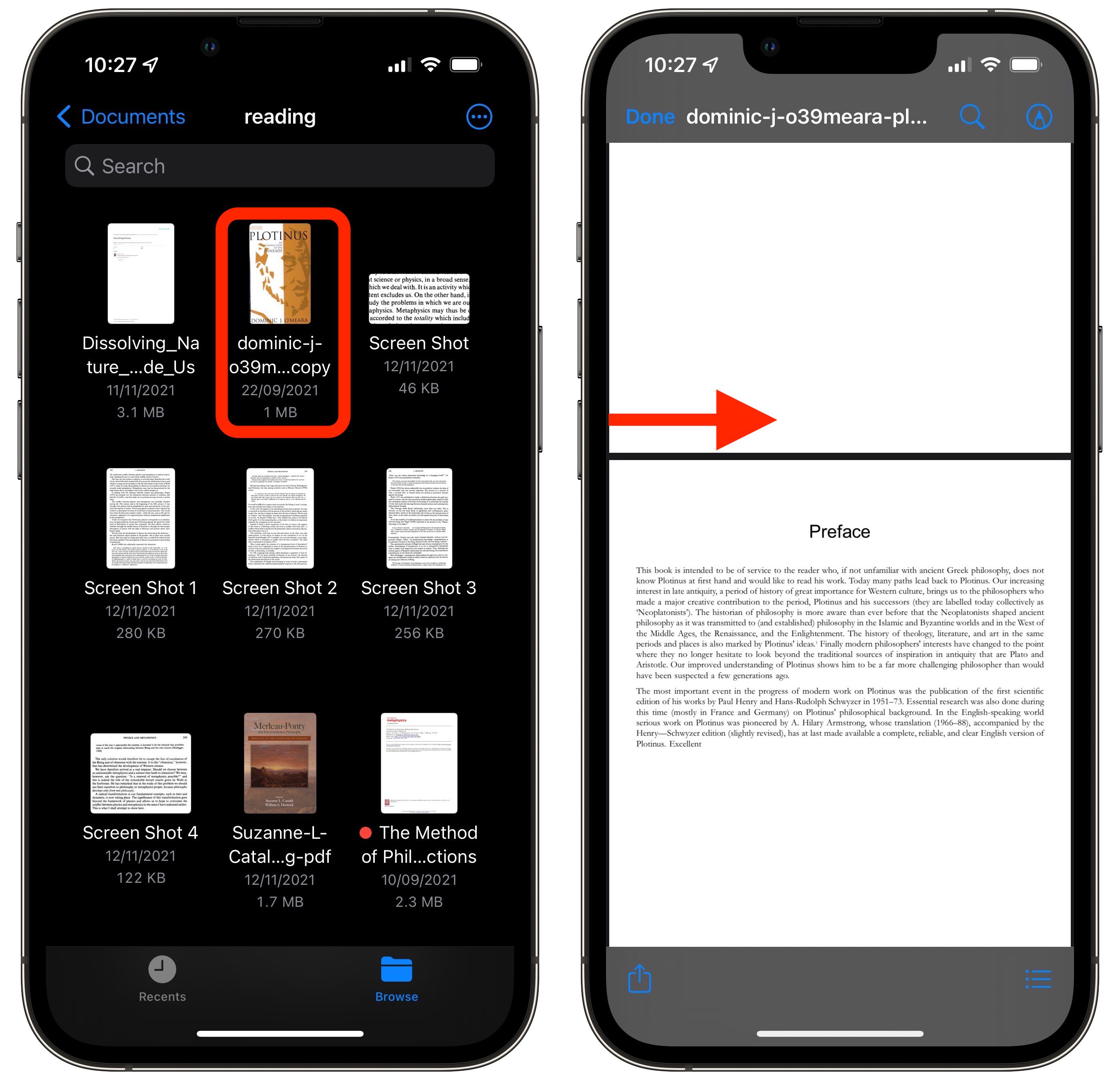
The built-in PDF editor can insert pages from existing files or scans, remove pages, and rotate pages. PDFs can also be locked with a password.


Notes :

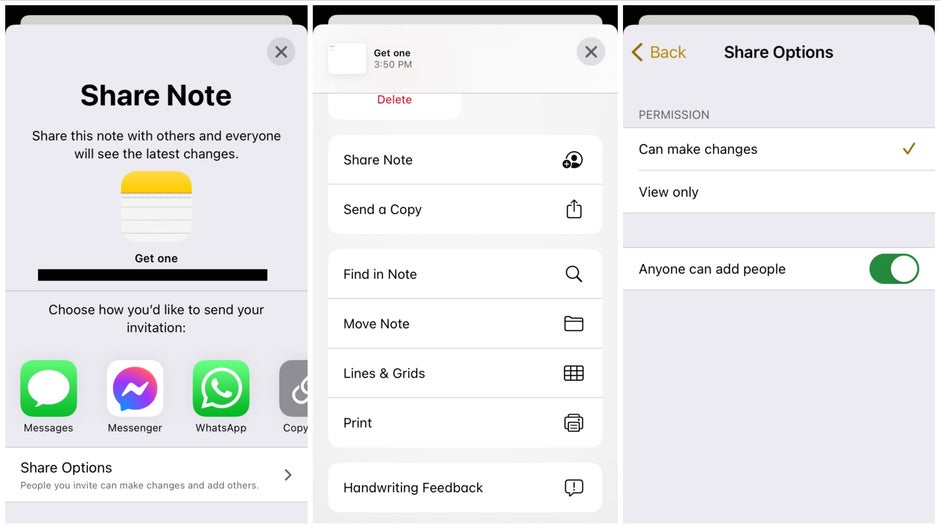
New #tags allow classifying, organizing, then finding your notes faster. Smart Folders automatically group various notes based on tags. Ability to share notes with other collaborators and work on them together. The activity view shows a summary of the changes made by other collaborators before your last reading and a day-by-day list of the activities carried out by each collaborator. It is possible to mention @someone in the notes, who will be notified.


Reminders

Ability to insert #tags in reminders to classify them.

Shortcuts :

Sound recognition has been added to the automations, so it is possible to execute a customized command when a certain sound is recognized.
New automation triggers based on the current reading of a HomeKit-enabled humidity, air quality, or light level sensor.
Voice Memos
Added new playback options to adjust speed and skip silence.


Wallet :

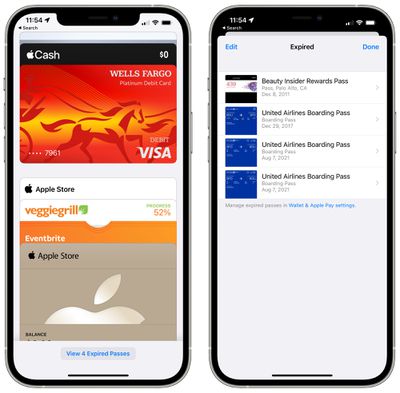
Keys: iPhone is able to unlock select HomeKit-enabled smart locks. Requires an iPhone with an A12 chip or newer.
Identification cards and driver licenses: iPhone can store a copy of a U.S. user's state-issued identity card or driver license. Arizona, Georgia, Connecticut, Iowa, Kentucky, Maryland, Oklahoma, and Utah will be the first states to support the feature.


Security and privacy :

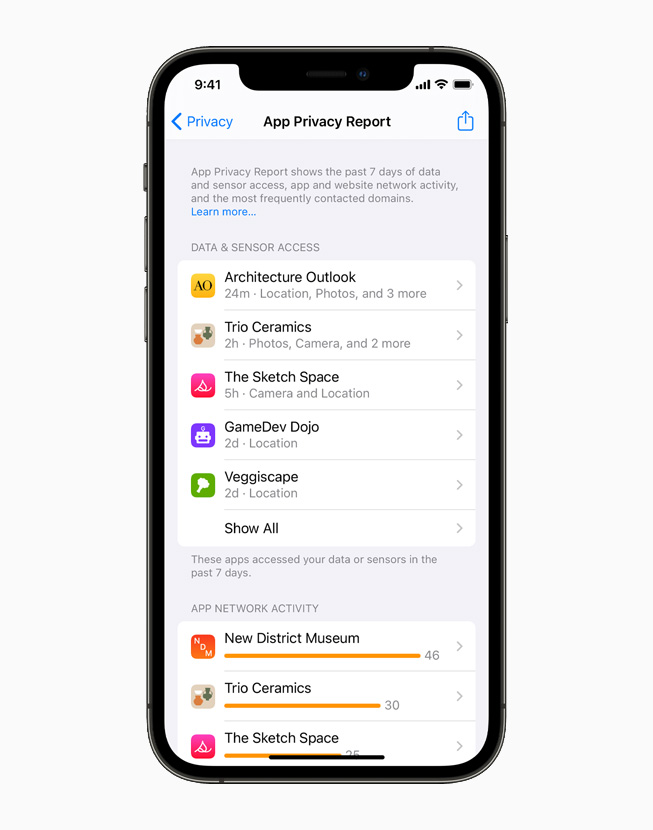
App Privacy Report

By activating this app logging, the user can save a 7-day summary of the times when the various apps access certain data and the domains or websites they visit.

Siri improved privacy

On devices with an Apple A12 Bionic system on a chip or newer, Siri now converts audio into words on the device itself instead of sending it to Apple servers.

Hide my IP for Trackers in Safari

Safari's anti-tracking now prevents known trackers from reading your real IP address.

Hide my IP for External Content in Mail

In the Mail app, you can enable the setting to hide your IP address when downloading external content that may be present in a mail message. In this way it is possible to privately download this external content without being tracked by spammers or commercial companies that have inserted them without the user's knowledge.

Hide My Email

Hide My Email creates random email addresses that forward to the inbox so e-mail can be sent and received anonymously.

iCloud Private Relay

Private Relay masks the user's IP address in Safari, preserving the region without revealing the actual location. It also protects the DNS query resolution and insecure HTTP traffic in all apps.

Built-in one-time password authenticator With Autofill

The built-in authenticator allows iOS devices to be used to generate verification codes for additional sign-in security of accounts. There is no need to download a separate app because it is integrated into the OS. The verification codes are automatically filled when a user signs in to the site.

WPA3 Hotspot

Hotspot connections now can also use the WPA3 security protocol.

Tethering to/from older iOS devices is not possible as WPA2 compatibility is not fully supported.

Apple Support have said that if enough people put in a feature request they might fix this issue.

CSAM detection

CSAM detection identifies known Child Sexual Abuse Material (CSAM) in photos stored iCloud Photos was originally intended to be included. Implementation of CSAM has been delayed indefinitely. This recognition is based on a perceptual hash called NeuralHash.

Siri and Search are also being updated to intervene when users perform searches for queries related to CSAM. The Messages app will warn children and their parents when receiving or sending sexually explicit photos, blurring sent and received photos.


Other changes

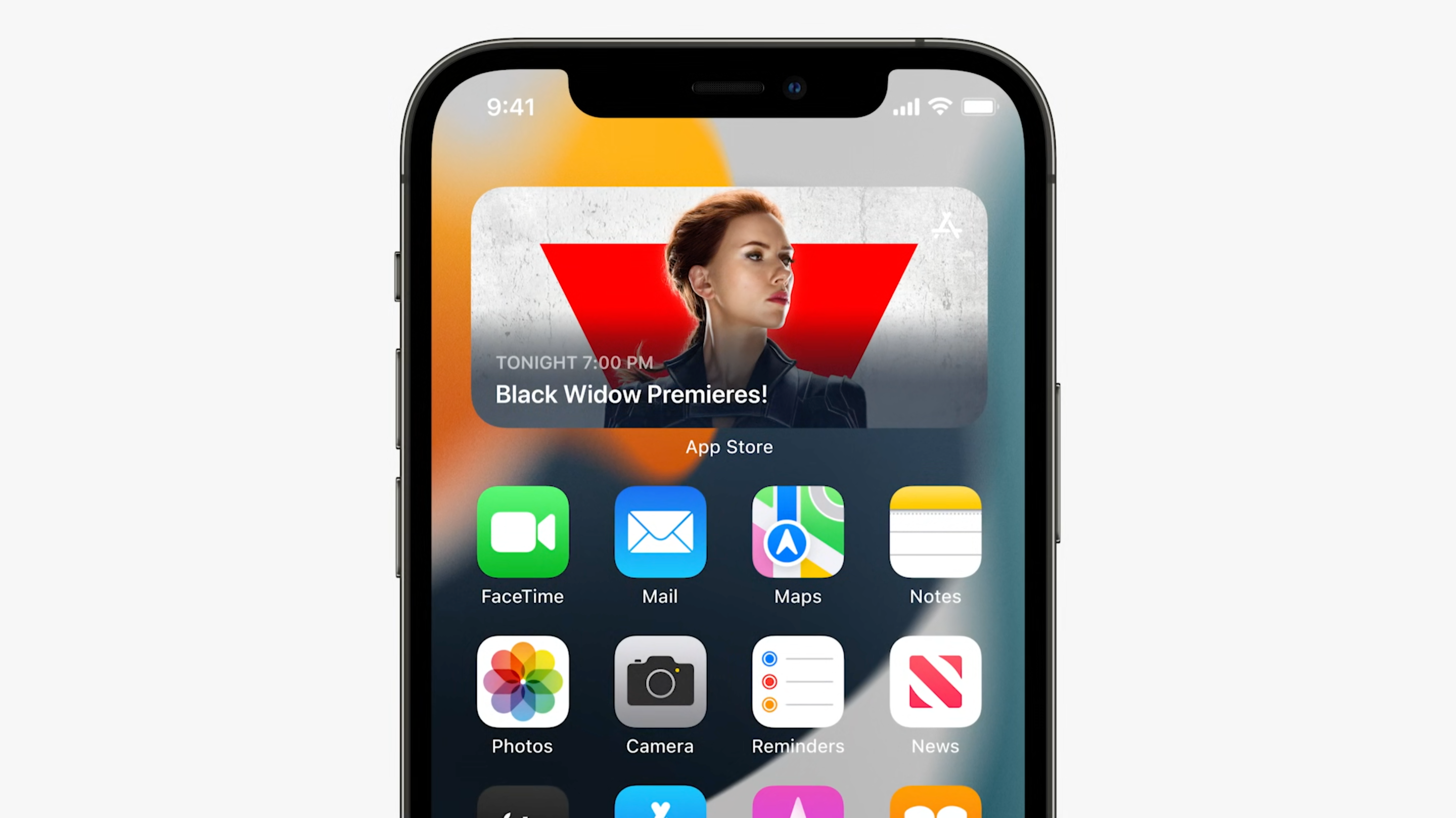
New widgets have been added: Mail, Contacts, Game Center, Find My, App Store, Sleep.
iOS 13 wallpapers were removed in the first beta of iOS 15.
iOS 15 features a new wallpaper in two modes: light and dark.
SharePlay was officially released in iOS 15.1. It was initially present in the iOS 15.0 betas but was disabled and hidden behind a developer profile before the final release.
"Other" storage was renamed to "System Data".
iOS 15 includes a new feature called "Record App Activity", and in iOS 15.2 this functionality was extended and is now called "App Privacy Report".
Emergency SOS was improved in iOS 15.2.
On iOS 15.0-15.1, Face ID was disabled on the iPhone 13 series after a third-party screen replacement. This is no longer the case starting from iOS 15.2.


That's it guys, Hope this information find useful. Leave us a comment about your view about our content.

 iOS (formerly iPhone OS) is a mobile operating system created and developed by Apple Inc. exclusively for its hardware. It is the operating system that powers many of apple's mobile devices, including the iPhone and iPod Touch; the term also included the versions running on iPads until the name iPad OS was introduced with V.13 in 2019. It is the world's second-most widely installed mobile operating system, after Android. It is the second widely used operating system. It is the basis for three other operating systems which are also developed by Apple: iPadOS, tvOS, and watchOS.

Released :

Unveiled in 2007 for the first-generation iPhone, iOS has since been extended to support other Apple devices such as the iPod Touch (September 2007) and the iPad (introduced: January 2010; availability: April 2010.) As of March 2018, Apple's App Store contains more than 2.1 million iOS applications, 1 million of which are native for iPads. These mobile apps have collectively been downloaded more than 130 billion times. Major versions of iOS are released annually. The current stable version, iOS 15, was released to the public on September 20, 2021.

Features :


Interface :-

The iOS user interface is based upon direct manipulation, using multi-touch gestures such as swipe, tap, pinch, and reverse pinch. Interface control elements include sliders, switches, and buttons. Internal accelerometers are used by some applications to respond to shaking the device or rotating it in three dimensions. Various accessibility described in & Accessibility functions enable users with vision and hearing disabilities to properly use iOS.

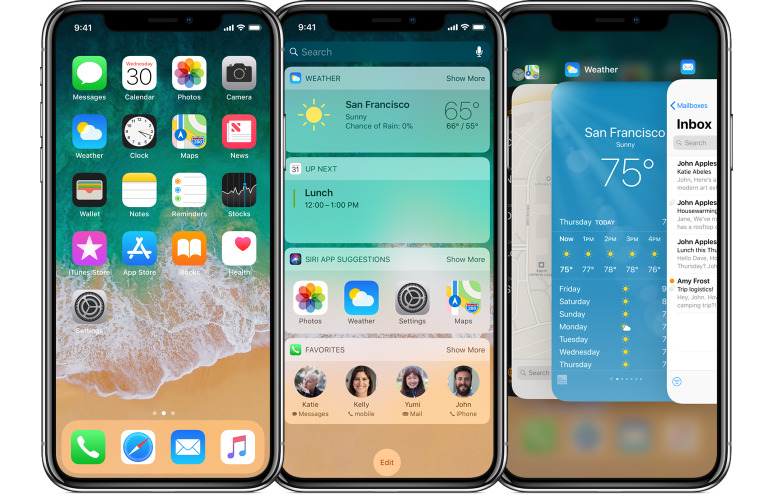
iOS devices boot to the home screen, the primary navigation and information "hub" on iOS devices, analogous to the desktop found on personal computers. iOS home screens are typically made up of app icons and widgets; app icons launch the associated app, whereas widgets display live, auto-updating content, such as a weather forecast, the user's email inbox, or a news ticker directly on the home screen.

Along the top of the screen is a status bar, showing information about the device and its connectivity. The status bar itself contains two elements, the Control Center and the Notification Center. The Control Center can be "pulled" down from the top right of the notch, on the new iPhones, giving access to various toggles to manage the device more quickly without having to open the Settings. It is possible to manage brightness, volume, wireless connections, music player, etc.

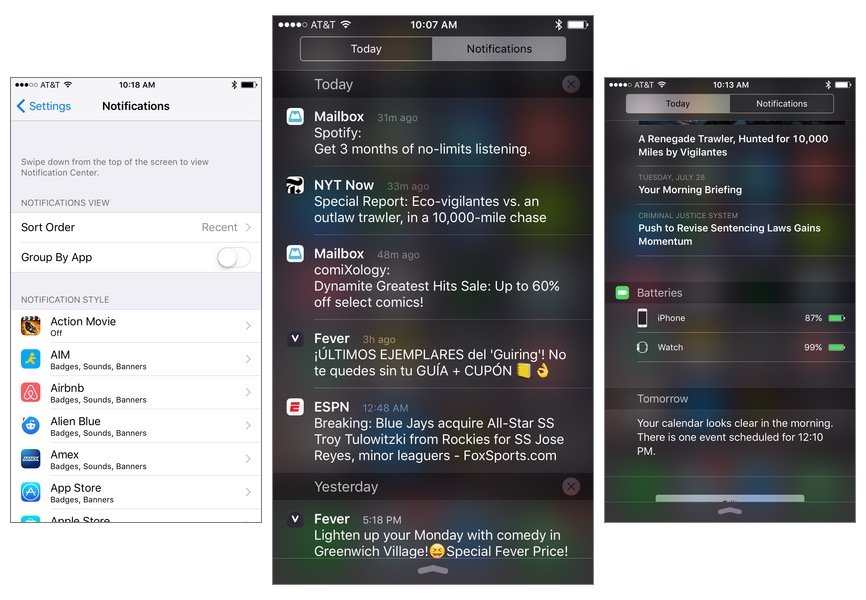
Instead, scrolling from the top left to the bottom will open the Notification Center, which in the latest versions of iOS is very similar to the lock screen. It displays notifications in chronological order and groups them by application. From the notifications of some apps it is possible to interact directly, for example by replying a message directly from it. Notifications are sent in two modes, the important notifications that are displayed on the lock screen and signaled by a distinctive sound, accompanied by a warning banner and the app badge icon, and the secondary mode where they are displayed in the Notification Center, but they are not shown on the lock screen, nor are they indicated by warning banners, badge icons or sounds.


It is possible to choose if notifications from an app can be shown on the lock screen, Notification Center, banner, or all three; whether the banner should be temporary or permanent; activate or deactivate the sound; choose whether to group by app or not and whether to show previews when locked. It is possible to turn off unwanted app notifications. Older notifications are automatically deleted after a few days.

A home screen may be made up of several pages, between which the user can swipe back and forth, one of the ways to do this is to hold down on the "dots" shown on each page and swipe left or right.

To the right of the last page, the App Library lists and categorizes apps installed on the device. Apps within each category are arranged based on the frequency of their usage. In addition to a category for suggested apps, a "recent" category lists apps recently installed alongside App Clips recently accessed. Users can search for the app they want or browse them in alphabetical order.

iOS also integrates seamlessly with other programming frameworks and technologies, such as Apple Pay, HomeKit, HealthKit, and ResearchKit.

On iOS, the main page button is usually located at the top right. To go back in an application there is almost always a "back" button. You can go back in 4 different ways, it varies depending on the context.

Press the "Back" button at the top left of the display
Swipe right from the left edge of the screen (gesture)
Press the "Finish" action at the top right of the screen
Scroll down on the screen content
The page title is practically always present and very visible, but it shrinks as the user scrolls down.

Navigation destinations that cannot be contained in the bottom tab bar can: be moved to a generic "More" tab or appear as actions in the top left or top right of other destinations. Model views are single-screen activities that are displayed by swiping into the foreground, while allowing the previous screen to peek up, retreating into the background. You can ignore them by scrolling down or tapping "Back" at the top.

Full screen views are media content such as photos or videos that take up the entire screen. They disappear on scrolling down. Occasionally on iOS, important page actions appear on a lower toolbar.
Action menus can be activated by any button or by attempting to perform any action. They scroll from bottom to top.

On earlier iPhones with home button, screenshots can be created with the simultaneous press of the home and power buttons. In comparison to Android OS, which requires the buttons to be held down, a short press does suffice on iOS. On the more recent iPhones which lack a physical home button, screenshots are captured using the volume-down and power buttons instead.

The camera application used a skeuomorphic closing camera shutter animation prior to iOS 7. Since then, it uses a simple short blackout effect. Notable additions over time include HDR photography and the option to save both normal and high dynamic range photographs simultaneously where the former prevents ghosting effects from moving objects (since iPhone 5, iOS 6), automatic HDR adjustment (iOS 7.1), "live photo" with short video bundled to each photo if enabled (iPhone 6s, iOS 9), and a digital zoom shortcut (iPhone 7 Plus, iOS 10). Some camera settings such as video resolution and frame rate are not adjustable through the camera interface itself, but are outsourced to the system settings

A new feature in iOS 13 called "context menus" shows related actions when you touch and hold an item. When the context menu is displayed, the background is blurred. To choose from a few options, a selection control is used. Selectors can appear anchored at the bottom or in line with the content (called date selectors). Date selectors take on the appearance of any other selection control, but with a column for day, month, and optionally year.

Alerts appear in the center of the screen, but there are also alerts that scroll up from the bottom of the screen (called "action panels"). Destructive actions (such as eliminating any element) are colored red.

The official font of iOS is San Francisco. It is designed for small text readability, and is used throughout the operating system, including third-party apps.

The icons are 180x180px in size for iPhones with a larger screen, usually models over 6 inches, including iPhone 11 Pro and iPhone 8 Plus, while it's 120x120px on iPhones with smaller displays.
Applications
See also: App Store (iOS) and .ipa
iOS devices come with preinstalled apps developed by Apple including Mail, Maps, TV, Music, FaceTime, Wallet, Health, and many more.

Applications ("apps") are the most general form of application software that can be installed on iOS. They are downloaded from the official catalog of the App Store digital store, where apps are subjected to security checks before being made available to users. In June 2017, Apple updated its guidelines to specify that app developers will no longer have the ability to use custom prompts for encouraging users to leave reviews for their apps.[83][84] IOS applications can also be installed directly from an IPA file provided by the software distributor, via unofficial ways. They are written using iOS Software Development Kit (SDK) and, often, combined with Xcode, using officially supported programming languages, including Swift and Objective-C. Other companies have also created tools that allow for the development of native iOS apps using their respective programming languages.

Applications for iOS are mostly built using components of UIKit, a programming framework. It allows applications to have a consistent look and feel with the OS, nevertheless offering customization.
Elements automatically update along with iOS updates, automatically including new interface rules. UIKit elements are very adaptable, this allows developers to design a single app that looks the same on any iOS device. In addition to defining the iOS interface, UIKit defines the functionality of the application.

At first, Apple did not intend to release an SDK to developers, because they did not want third-party apps to be developed for iOS, building web apps instead. However, this technology never entered into common use, this led Apple to change its opinion, so in October 2007 the SDK for developers was announced, finally released on March 6, 2008.

The SDK includes an inclusive set of development tools, including an audio mixer and an iPhone simulator. It is a free download for Mac users. It is not available for Microsoft Windows PCs. To test the application, get technical support, and distribute applications through App Store, developers are required to subscribe to the Apple Developer Program.


Home screen :

In iPhone OS 3, Spotlight was introduced, allowing users to search media, apps, emails, contacts, messages, reminders, calendar events, and similar content. In iOS 7 and later, Spotlight is accessed by pulling down anywhere on the home screen (except for the top and bottom edges that open Notification Center and Control Center). In iOS 9, there are two ways to access Spotlight. As with iOS 7 and 8, pulling down on any homescreen will show Spotlight. However, it can also be accessed as it was in iOS 3 – 6. This endows Spotlight with Siri suggestions, which include app suggestions, contact suggestions and news. In iOS 10, Spotlight is at the top of the now-dedicated "Today" panel.

Since iOS 3.2, users are able to set a background image for the Home Screen. This feature is only available on third-generation devices—iPhone 3GS, third-generation iPod touch (iOS 4.0 or newer), and all iPad models (since iOS 3.2)—or newer.

iOS 7 introduced a parallax effect on the Home Screen, which shifts the device's wallpaper and icons in response to the movement of the device, creating a 3D effect and an illusion of floating icons. This effect is also visible in the tab view of Mail and Safari. Researchers found that users organize icons on their homescreens based on usage frequency and relatedness of the applications, as well as for reasons of usability and aesthetics.

System font :

iOS originally used Helvetica as the system font. Apple switched to Helvetica Neue exclusively for the iPhone 4 and its Retina Display, and retained Helvetica as the system font for older iPhone devices on iOS 4.[101] With iOS 7, Apple announced that they would change the system font to Helvetica Neue Light, a decision that sparked criticism for inappropriate usage of a light, thin typeface for low-resolution mobile screens. Apple eventually chose Helvetica Neue instead.[102][103] The release of iOS 7 also introduced the ability to scale text or apply other forms of text accessibility changes through Settings. With iOS 9, Apple changed the font to San Francisco, an Apple-designed font aimed at maximum legibility and font consistency across its product lineup.

Folders :

iOS 4 introduced folders, which can be created by dragging an application on top of another, and from then on, more items can be added to the folder using the same procedure. A title for the folder is automatically selected by the category of applications inside, but the name can also be edited by the user. When apps inside folders receive notification badges, the individual numbers of notifications are added up and the total number is displayed as a notification badge on the folder itself. Originally, folders on an iPhone could include up to 12 apps, while folders on iPad could include 20. With increasing display sizes on newer iPhone hardware, iOS 7 updated the folders with pages similar to the home screen layout, allowing for a significant expansion of folder functionality. Each page of a folder can contain up to nine apps, and there can be 15 pages in total, allowing for a total of 135 apps in a single folder. In iOS 9, Apple updated folder sizes for iPad hardware, allowing for 16 apps per page, still at 15 pages maximum, increasing the total to 240 apps.

Notification Center :

Before iOS 5, notifications were delivered in a modal window and couldn't be viewed after being dismissed. In iOS 5, Apple introduced Notification Center, which allows users to view a history of notifications. The user can tap a notification to open its corresponding app, or clear it. Notifications are now delivered in banners that appear briefly at the top of the screen. If a user taps a received notification, the application that sent the notification will be opened. Users can also choose to view notifications in modal alert windows by adjusting the application's notification settings. Introduced with iOS 8, widgets are now accessible through the Notification Center, defined by 3rd parties.

When an app sends a notification while closed, a red badge appears on its icon. This badge tells the user, at a glance, how many notifications that app has sent. Opening the app clears the badge.


Accessibility :

iOS offers various accessibility features to help users with vision and hearing disabilities. One major feature, VoiceOver, provides a voice reading information on the screen, including contextual buttons, icons, links and other user interface elements, and allows the user to navigate the operating system through gestures. Any apps with default controls and developed with a UIKit framework gets VoiceOver functionality built in. One example includes holding up the iPhone to take a photo, with VoiceOver describing the photo scenery. As part of a "Made for iPhone" program, introduced with the release of iOS 7 in 2013, Apple has developed technology to use Bluetooth and a special technology protocol to let compatible third-party equipment connect with iPhones and iPads for streaming audio directly to a user's ears. Additional customization available for Made for iPhone products include battery tracking and adjustable sound settings for different environments. Apple made further efforts for accessibility for the release of iOS 10 in 2016, adding a new pronunciation editor to VoiceOver, adding a Magnifier setting to enlarge objects through the device's camera, software TTY support for deaf people to make phone calls from the iPhone, and giving tutorials and guidelines for third-party developers to incorporate proper accessibility functions into their apps.

Criticism has been aimed at iOS depending on both internet connection (either WiFi or through iTunes) and a working SIM card upon first activation. This restriction has been loosened in iOS 12, which no longer requires the latter.

Multitasking :

Multitasking for iOS was first released in June 2010 along with the release of iOS 4. Only certain devices—iPhone 4, iPhone 3GS, and iPod Touch 3rd generation—were able to multitask. The iPad did not get multitasking until iOS 4.2.1 in that November. The implementation of multitasking in iOS has been criticized for its approach, which limits the work that applications in the background can perform to a limited function set and requires application developers to add explicit support for it.

Before iOS 4, multitasking was limited to a selection of the applications Apple included on the device. Users could however "jailbreak" their device in order to unofficially multitask. Starting with iOS 4, on third-generation and newer iOS devices, multitasking is supported through seven background APIs:

Background audio – application continues to run in the background as long as it is playing audio or video content
Voice over IP – application is suspended when a phone call is not in progress
Background location – application is notified of location changes
Push notifications
Local notifications – application schedules local notifications to be delivered at a predetermined time
Task completion – application asks the system for extra time to complete a given task[129]
Fast app switching – application does not execute any code and may be removed from memory at any time
In iOS 5, three new background APIs were introduced:

Newsstand – application can download content in the background to be ready for the user
External Accessory – application communicates with an external accessory and shares data at regular intervals 
Bluetooth Accessory – application communicates with a bluetooth accessory and shares data at regular intervals

In iOS 7, Apple introduced a new multitasking feature, providing all apps with the ability to perform background updates. This feature prefers to update the user's most frequently used apps and prefers to use Wi-Fi networks over a cellular network, without markedly reducing the device's battery life.

Switching applications :

In iOS 4.0 to iOS 6.x, double-clicking the home button activates the application switcher. A scrollable dock-style interface appears from the bottom, moving the contents of the screen up. Choosing an icon switches to an application. To the far left are icons which function as music controls, a rotation lock, and on iOS 4.2 and above, a volume controller.

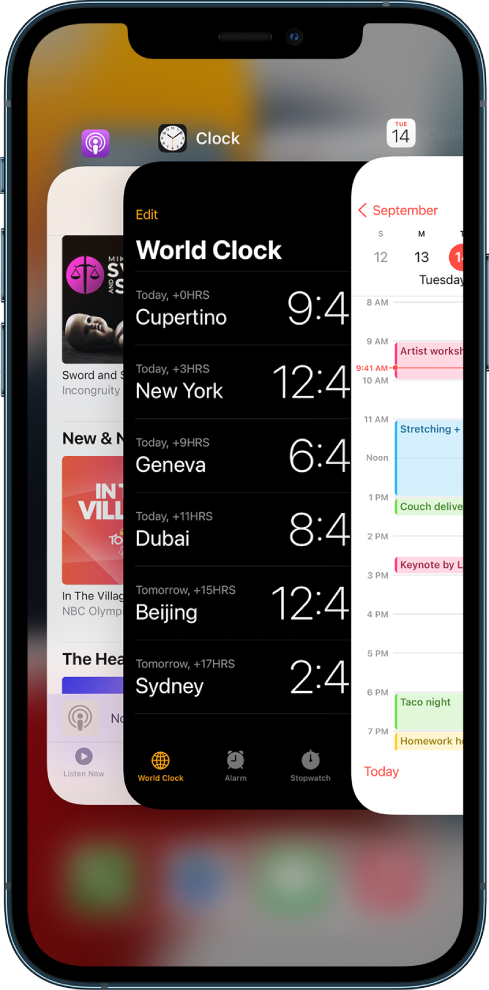
With the introduction of iOS 7, double-clicking the home button also activates the application switcher. However, unlike previous versions it displays screenshots of open applications on top of the icon and horizontal scrolling allows for browsing through previous apps, and it is possible to close applications by dragging them up, similar to how WebOS handled multiple cards.

With the introduction of iOS 9, the application switcher received a significant visual change; while still retaining the card metaphor introduced in iOS 7, the application icon is smaller, and appears above the screenshot (which is now larger, due to the removal of "Recent and Favorite Contacts"), and each application "card" overlaps the other, forming a rolodex effect as the user scrolls. Now, instead of the home screen appearing at the leftmost of the application switcher, it appears rightmost. In iOS 11, the application switcher receives a major redesign. In the iPad, the Control Center and app switcher are combined. The app switcher in the iPad can also be accessed by swiping up from the bottom. In the iPhone, the app switcher cannot be accessed if there are no apps in the RAM.


Ending tasks :

In iOS 4.0 to iOS 6.x, briefly holding the icons in the application switcher makes them "jiggle" (similarly to the homescreen) and allows the user to force quit the applications by tapping the red minus circle that appears at the corner of the app's icon.[132] Clearing applications from multitasking stayed the same from iOS 4.0 through 6.1.6, the last version of iOS 6.

As of iOS 7, the process has become faster and easier. In iOS 7, instead of holding the icons to close them, they are closed by simply swiping them upwards off the screen. Up to three apps can be cleared at a time compared to one in versions up to iOS 6.1.6.

Task completion :

Task completion allows apps to continue a certain task after the app has been suspended. As of iOS 4.0, apps can request up to ten minutes to complete a task in the background. This doesn't extend to background uploads and downloads though (e.g. if a user starts a download in one application, it won't finish if they switch away from the application).

Siri :

Siri (/ˈsɪəri/) is an intelligent personal assistant integrated into iOS. The assistant uses voice queries and a natural language user interface to answer questions, make recommendations, and perform actions by delegating requests to a set of Internet services. The software adapts to users' individual language usages, searches, and preferences, with continuing use. Returned results are individualized.

Originally released as an app for iOS in February 2010, it was acquired by Apple two months later, and then integrated into iPhone 4S at its release in October 2011. At that time, the separate app was also removed from the iOS App Store.

Siri supports a wide range of user commands, including performing phone actions, checking basic information, scheduling events and reminders, handling device settings, searching the Internet, navigating areas, finding information on entertainment, and is able to engage with iOS-integrated apps. With the release of iOS 10 in 2016, Apple opened up limited third-party access to Siri, including third-party messaging apps, as well as payments, ride-sharing, and Internet calling apps. With the release of iOS 11, Apple updated Siri's voices for more clear, human voices, it now supports follow-up questions and language translation, and additional third-party actions.


Game Center :

Game Center is an online multiplayer "social gaming network" released by Apple. It allows users to "invite friends to play a game, start a multiplayer game through matchmaking, track their achievements, and compare their high scores on a leaderboard." iOS 5 and above adds support for profile photos.

Game Center was announced during an iOS 4 preview event hosted by Apple on April 8, 2010. A preview was released to registered Apple developers in August. It was released on September 8, 2010, with iOS 4.1 on iPhone 4, iPhone 3GS, and iPod Touch 2nd generation through 4th generation. Game Center made its public debut on the iPad with iOS 4.2.1. There is no support for the iPhone 3G, original iPhone and the first-generation iPod Touch (the latter two devices did not have Game Center because they did not get iOS 4). However, Game Center is unofficially available on the iPhone 3G via a hack.


That's it guys, The information above is gained from different sources and credits to them, Support us to give you more and more information in future and share your feedback as well.


Older Posts

Subscribe To

Posts
Atom
Posts
All Comments
Atom
All Comments

Follow us on

Popular Posts

  • IOS 15 : All you need to know about Apple Mobiles New Operating System
      A s we all know that IOS is the exclusive operating system developed by and used by Apple Mobiles  now as per the annual update we have IO...
  • Process to get Early Access to Task Mate app in India
      Here is how to get Access to Task Mate app : All you need to know about Task Mate app in India      As per reported information Task Mate ...
  • Hidden Features, Tips and Tricks of Facebook
       Hidden Features Of Facebook You Must Know   Facebook: is the social media platform everyone uses, but just don’t lay behind in social med...

Labels

Android (3) Android app (6) Color OS (2) Early-Access (1) Funtouch OS (1) Gadgets (2) Harmony OS (1) How to Guide (8) IOS (4) IOS app (4) MI UI (1) New Releases (10) One UI (2) Oxygen OS (1) Rumoured (3) Tech News (12) Updated Notes (4) Windows 10 (4) Windows 11 (6)

recent posts

Blog Archive

  • ▼  2022 (66)
    • ▼  February (29)
      • Feb 12 (1)
      • Feb 11 (1)
      • Feb 10 (2)
      • Feb 09 (5)
      • Feb 08 (2)
      • Feb 07 (2)
      • Feb 06 (2)
      • Feb 05 (2)
      • Feb 04 (1)
      • Feb 03 (1)
      • Feb 02 (4)
      • Feb 01 (6)
    • ►  January (37)
      • Jan 31 (3)
      • Jan 30 (2)
      • Jan 29 (4)
      • Jan 28 (4)
      • Jan 27 (11)
      • Jan 26 (5)
      • Jan 25 (8)

Created with by TechEra