• Home
  • Mobile
    • OS
      • Android
      • Apple IOS
      • One UI (Samsung)
      • Color OS (OPPO)
      • Funtouch OS (Vivo)
      • MI UI (Xiaomi)
      • Harmony OS (Huawei)
      • Oxygen OS (Oneplus)
    • New Releases
    • Gadgets
    • Rumoured
    • Update Notes
  • PC
    • Windows 10
    • Windows 11
  • Tech News
  • Apps
    • Android
    • IOS
    • Early Access
  • How to Guide
  • More
    • About us
    • Contact us
    • Privacy Policy
    • DMCA
*Welcome Everyone please note that out site has been moved to the New link with dedicated domain you can navigate Click Here to access our site all content will be found there and new content is being posted there as well.
*Click Here to go to New Site

 Telegram brings these Features in V 8.5 :


Many of us known Telegram instant message application, As part of it's monthly updates it released latest version v8.5; Bunch of new features had been added for its social messaging platform. Let's see what this messaging giant bring to users :

New and Better Reactions, along with Interactive Emojis

Telegram has added five new reaction emojis so users can give relevant reactions to messages also these reactions are interactive like if a user taps and holds a reaction emoji before sending it, the reaction will turn into a synchronized full-screen effect. Users can send available emojis as reactions as interactive emojis, which creates a full-screen animation effect in a personal or a group chat when a recipient taps on them.


Video Stickers :

Telegram has added support for stickers that can be converted from regular videos. Before this update, Users could use the animated stickers feature. In latest update, with the support for video stickers, users will be able to easily create their custom, animated stickers from regular videos using any video editing programs and add them to Telegram. They can publish their sticker packs using the @Stickers bot or download new sets made by others.


Navigation :

Telegram is making it easier for users to navigate around personal chats, group chats, saved messages, and other pages on the platform With the recent update, users will be able to press and hold the “Back” button on any chat page to open up a list of previously visited chats. Then, they can tap any of the options to return to a specific group chat or the Saved Messages page.


Translation to Instant View pages :

Telegram also added Translation support to Instant-View Pages in this new update, So you can translate instant view pages with more ease.


These are the main changes or upgrades in the latest update of Telegrams v8.5 along with these features telegram also added minor animations to the tab-icons on iOS, improved call quality, and also an option to send silent messages from the sharing interface.

That's it for now, Hope you got the information good. If you have any word can tell us in comments and also in our social handles listed in home page.


Highlights About Android 12 We know So far :


Intro :

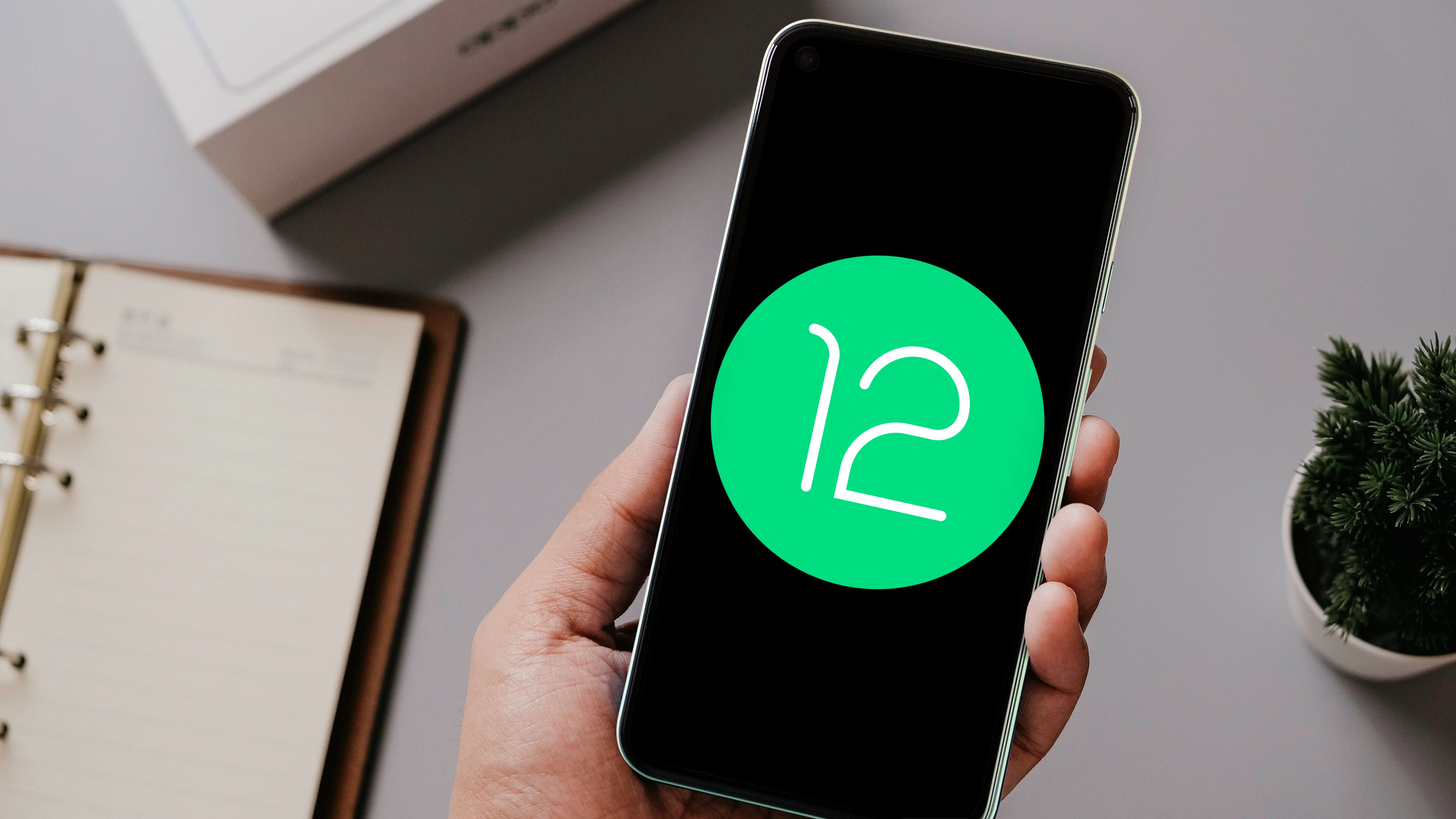
Android, We don't need seperate introduction for this word right ! Android become part of the life in our day to day life. Google will Release their new Android Operating Systems annually, As part of this Google already Launched it's Android Operating System Version 12 on  Oct 4th 2021. All mobile manufacturers are also started rolling the same update to their users. So, let's get into details of the Original Android version 12.

Android 12 (internally codenamed Snow Cone) was announced in an Android blog posted on February 18, 2021. A developer preview was released immediately, with two additional ones planned the following two months. After that, four monthly beta releases were planned, beginning in May, the last one of them reaching platform stability in August, with general availability coming shortly after that.


What You will get with Android 12 : 

Androids Latest Release comes with a lot of New Updates mostly huge UI Refreshments with their "Material You" design. Let's get dive into details what we got in Android 12.

Material You Design :

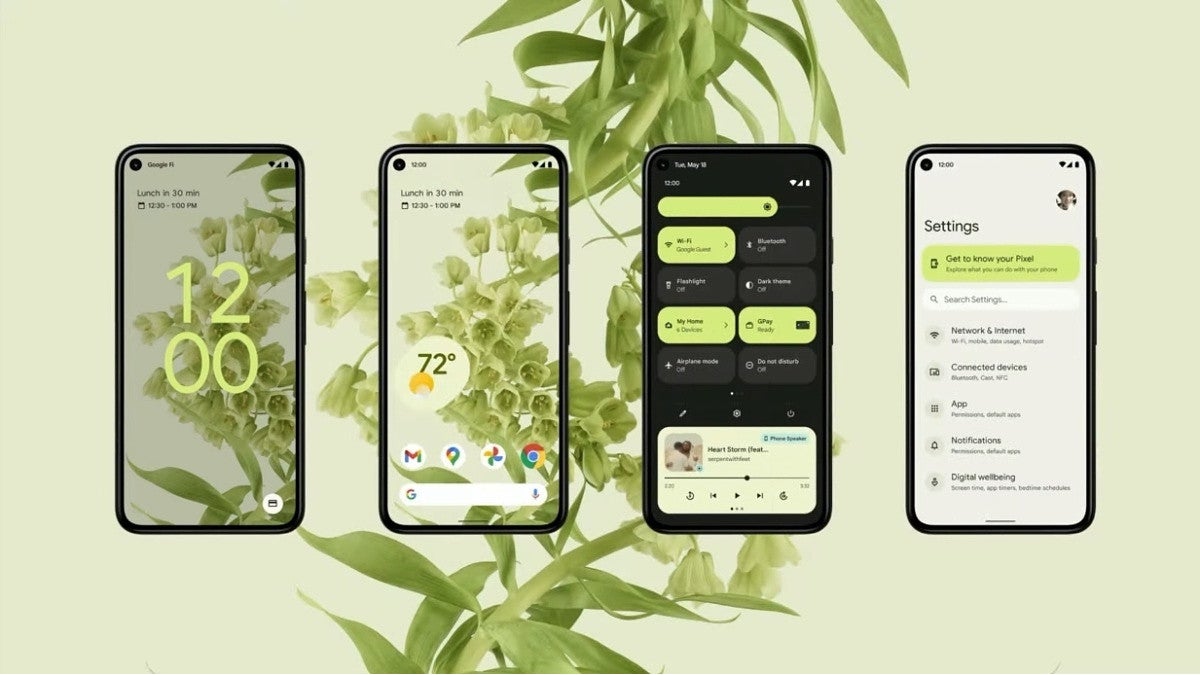
As we discussed earlier Android 12 comes with a refreshed UI they named it as Material You design. Material You is the next iteration of Material Design. This design language is will be seen across a wider variety of Google services from now on. But for Android, this forms one of the bigger visual overhauls the OS has seen in several years. There’s a lot of focus on color and customization, allowing users to choose their own color swatches, contrast, element sizes, line widths, and more.


Wallpaper Based Theming Experience :


Along with UI google also done pretty great job in Theming which pick colours from your wallpapers and apply the same as theme and also google working on color changing pallets and widgets as well. Google says the color extraction system uses a clustering algorithm with Material color targets to determine the dominant and less dominant colors and then applies hues that match your wallpaper. A rich palette of 5 colors — 2 neutral and 3 accent colors — and 12 shades of Material color can be used to determine the closest hues to the user’s wallpaper. Apps can then grab Android’s system color from an index into the color palette and use it in many different, subtle ways. Widgets can even use the color extraction feature to harmonize with the user’s theme on the home screen.


The feature is not currently readily available to end-users, but you can enable it with some fiddling around as it’s present within the build. The feature is readily available with Beta 2 already. So, end users may get this feature with in no time.

Private Compute Core :

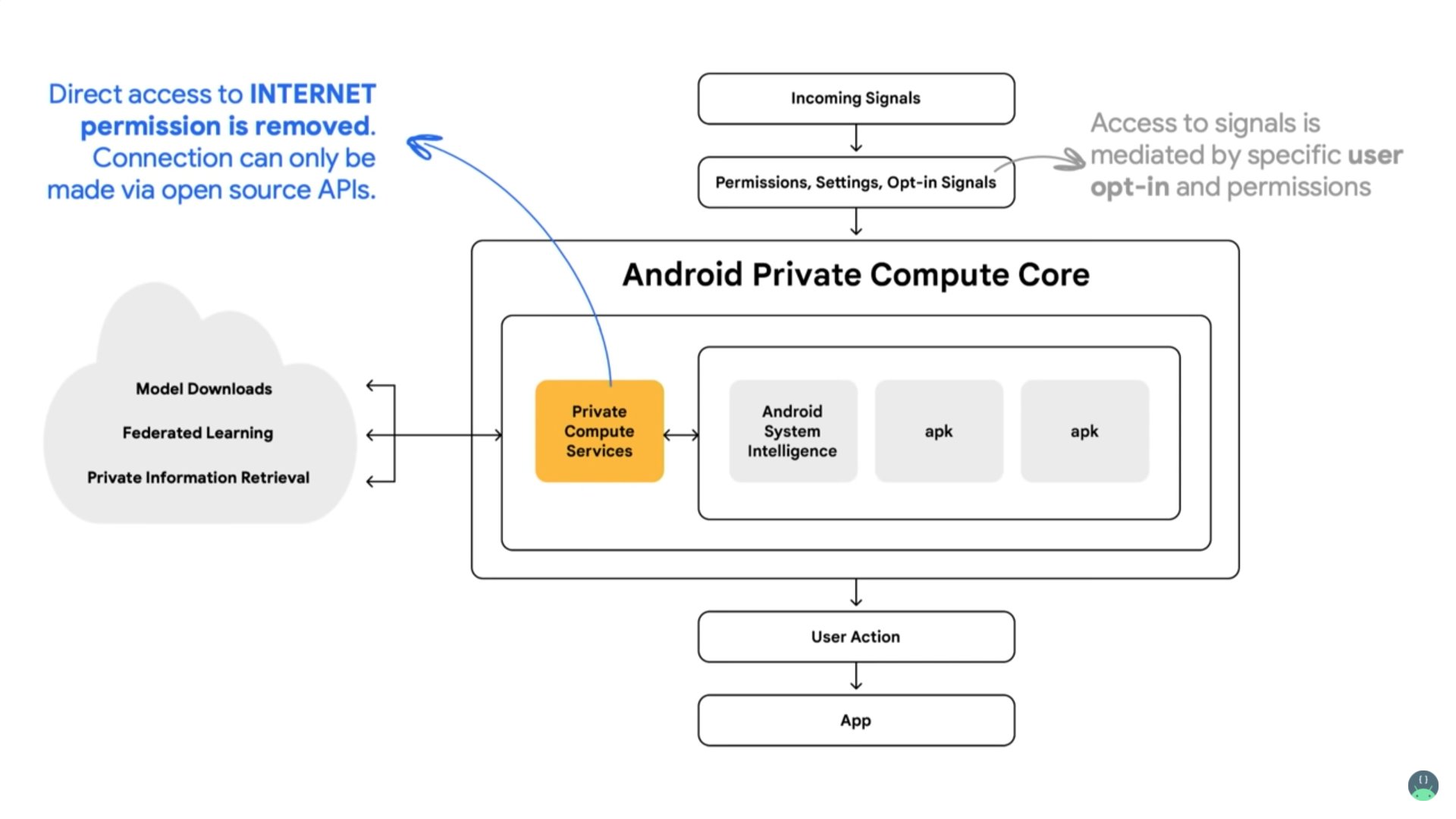
As Google said they are more concentrated on Privacy, Android 12 features a Private Compute Core that will keep your information private for several AI-driven features, like Live Caption, Now Playing, and Smart Reply. The Private Compute Core will be a safe partition within the operating system, similar to the ones used for password and biometric data, for these machine learning features. Having a separate partition for the data will make it easier for the operating system to keep it safe, while still keeping it available for system-level functions. This means sensitive audio and language processing for the features mentioned above will happen exclusively on your device.


App Hibernation

Hibernation, may be some of you know what hibernation means, Android 12 introduces a new feature called App Hibernation. App hibernation allows you to put apps into a “hibernation” state if they’re not actively being used. Apps that are put into a hibernated status will optimize their storage usage, and their permissions will be revoked. Apps that aren’t used for several months will be put into this “hibernation” state, although users can quickly toggle this feature on and off if they don’t want their unused apps to go into hibernation. To get an app out of hibernation, you just need to run it normally.


Can Take Long Screenshots :

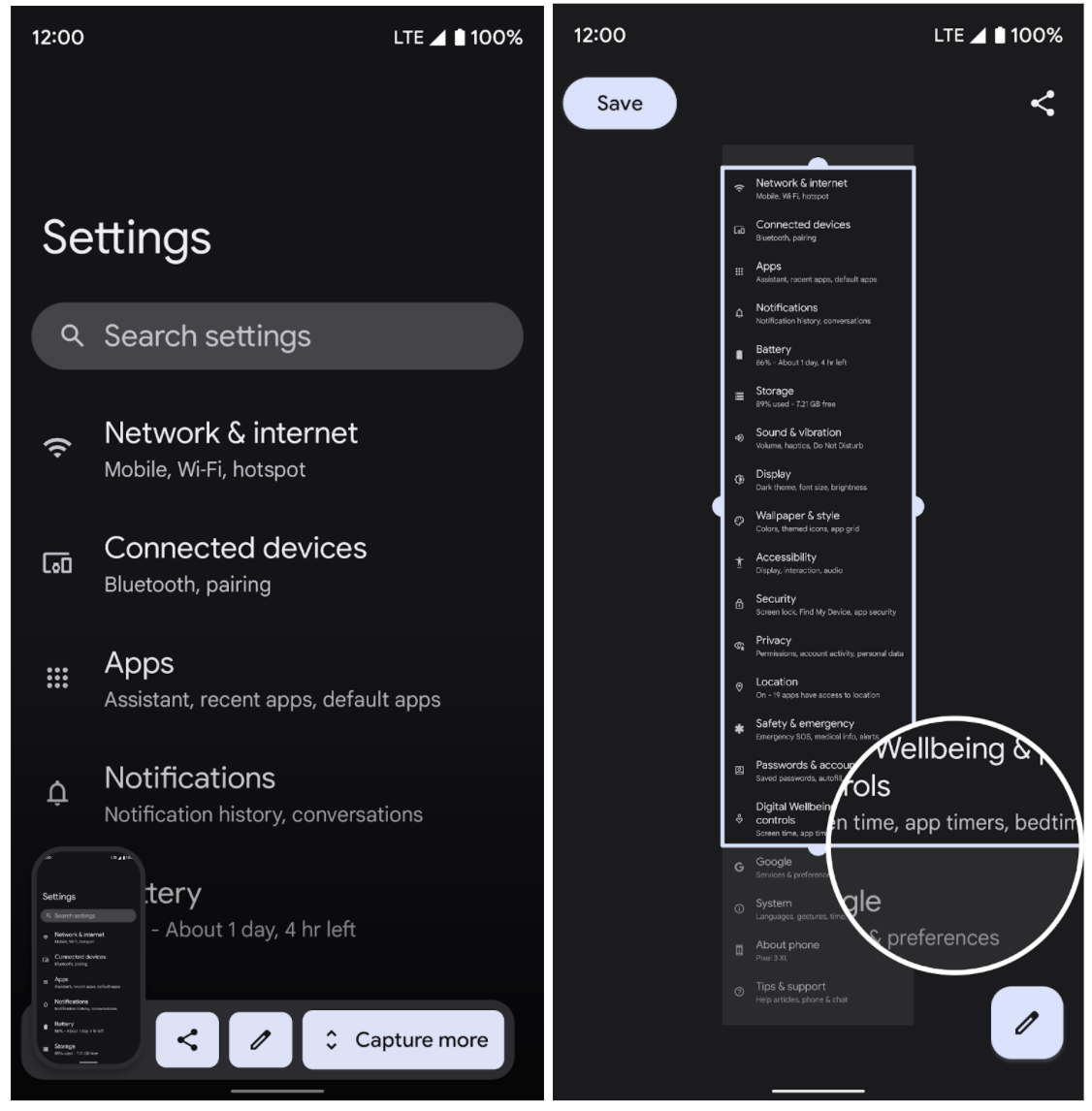
Android 12 brings ability to take super long screenshots which allows user to take super long screenshots of documents or webpage, whatever it may be


Pro Gaming :

Google take more concerns about gamers as well, Android 12 has a few new tricks up its sleeve for gamers too. You can pull out a game dashboard which houses a range of tools for supercharging your gameplay experience. Inside the dashboard, you’ll find options to switch on an FPS counter, record the gameplay, and stream on sites like YouTube. It also lets you quickly put your phone on Do Not Disturb mode to optimize its performance for the best results.

Mic and Camera kill switches

As google says it worked on privacy and security wll, On Android 12, whenever an app accesses your phone’s camera or microphone, an indicator pops up at the top of your screen. In addition to that, Android 12 comes equipped with kill switches for these modules. Therefore, if you decide to upgrade your privacy and block all apps from using your phone’s camera or mic, you can do so in an instant from the Quick Settings panel.


Extra dim the screen

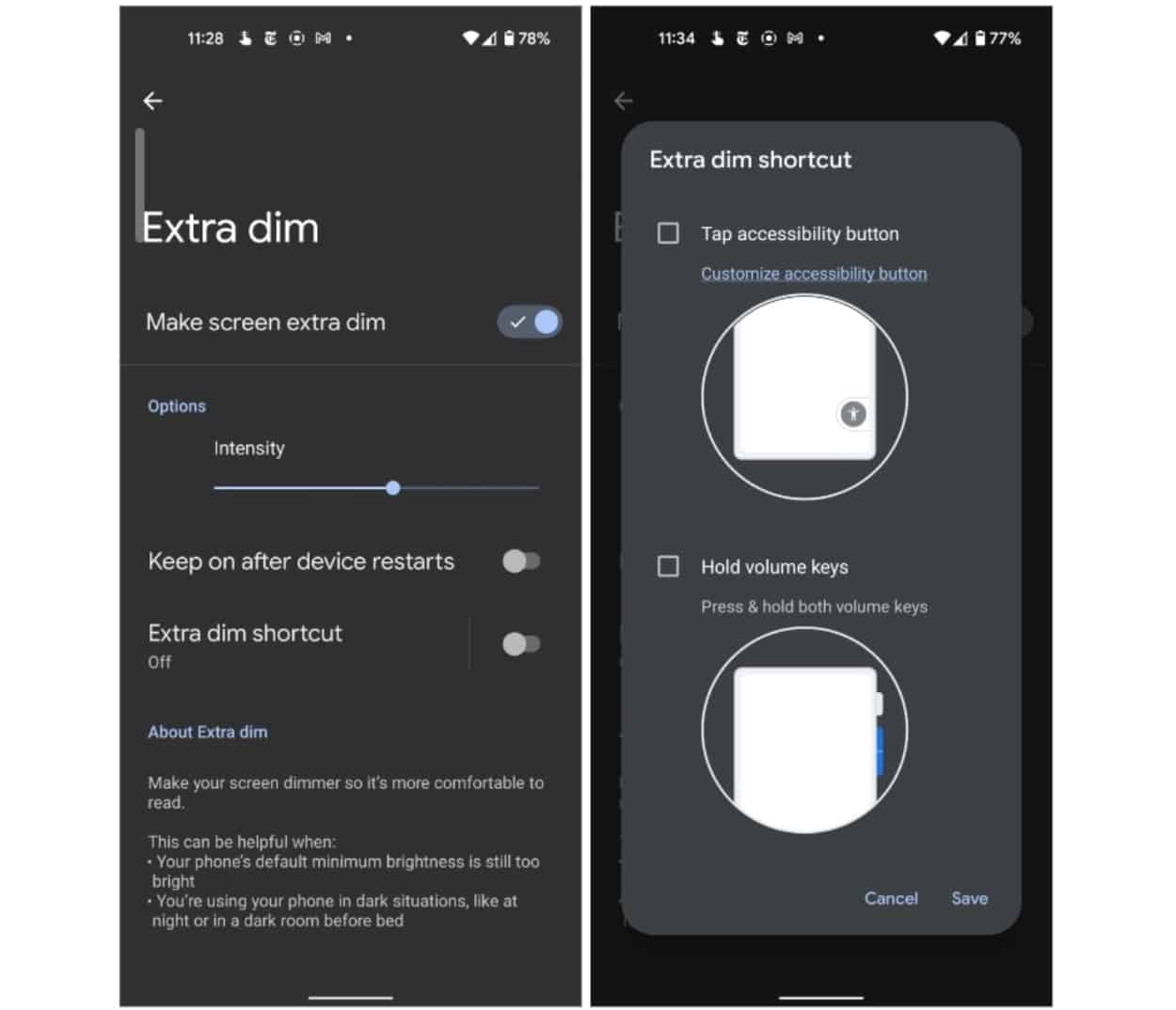
While using mobile in late nights many feel uncomfortable with brightness of the display even it sets to minimum level, Android 12 has a handy toggle for you. It lets you dim the screen beyond the brightness slider’s limit. The option is called “Extra Dim” and is located under Settings > Accessibility. With this option, Android 12 closes the blinds and adds a little shade to your display. However, the difference isn’t significant, but it still should be more comfortable on your eyes than the brightness slider’s lowest value.


Privacy Dashboard :

Now Android 12 comes with all new Privacy Dashboard with many options and it also tell us that how google working on user privacy, You can find this in Settings >> Privacy


Control phone with your face

For users with disabilities, Android 12 has a new accessibility tool that allows you to control the interface with just your facial expressions. You can assign a handful of facial gestures to actions and navigate the OS without touching your phone at all. For instance, it can pull down your notification shade when you open your mouth or go back home when you look to the right. Go to Settings >> Accessibility >> Switch Access to activate “Use Switch access.” On the following screen, select “Camera Switch,” and continue the onboarding process with the default options to get started.


This is all you can get and there are many more as well, will update you all accordingly.

How you can get update ?

Google Officially Released the operating system already and Stock Android Operating already available for Pixel Devices which are released in past 3 years and for Remaining Brands the software will be pushed from your Respective brands. You can go through our Update Notes Page to check about your brand and model updation availability.


That's it for now guys, There is lot more to discover in Android 12 and will let you all know about them. Hope you find information well and if you have any word for us let us know in comments and if you don't want to miss the update join our social handles.

Disabling or Enabling "Windows Defender" in Windows 11 :


Users who are using Windows 10 must be well aware about windows security suit which protect users from basic viruses "Windows Defender", Microsoft shipping Defender bundled with Windows Operating system from long time actually. Ofcourse windows defender upgraded a lot from it's initial version.

Putting aside about security that windows defender gives, User whose RAM is less always have issue with defender because it consumes a lot of memory space in windows due it's security protocol the app must run real time security scan frequently so high amount memory must be consumed. So, many user wanted to get rid of it.  If you also one of them let's get into details now :

Disable Windows Defender in Windows 11 :


We are proposing 3 different ways to Disable Let's see below one by one

Disable from Settings :

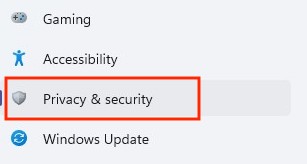
=> Open the Settings and go to the “Privacy & security” tab. Under the “Security” section, click on “Windows Security”.


=> Now, click on “Open Windows Security”. Your Windows 11 PC will open the Windows Security app in a new window.


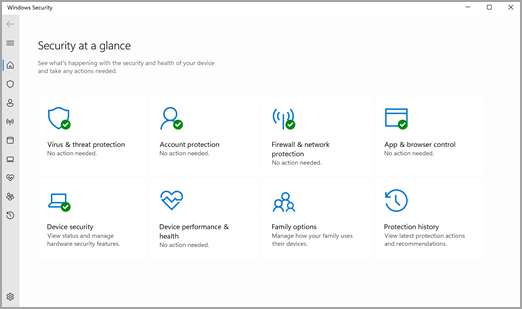
=> You can see Windows Security’s home screen. Here, click on the “Virus & threat protection” option.


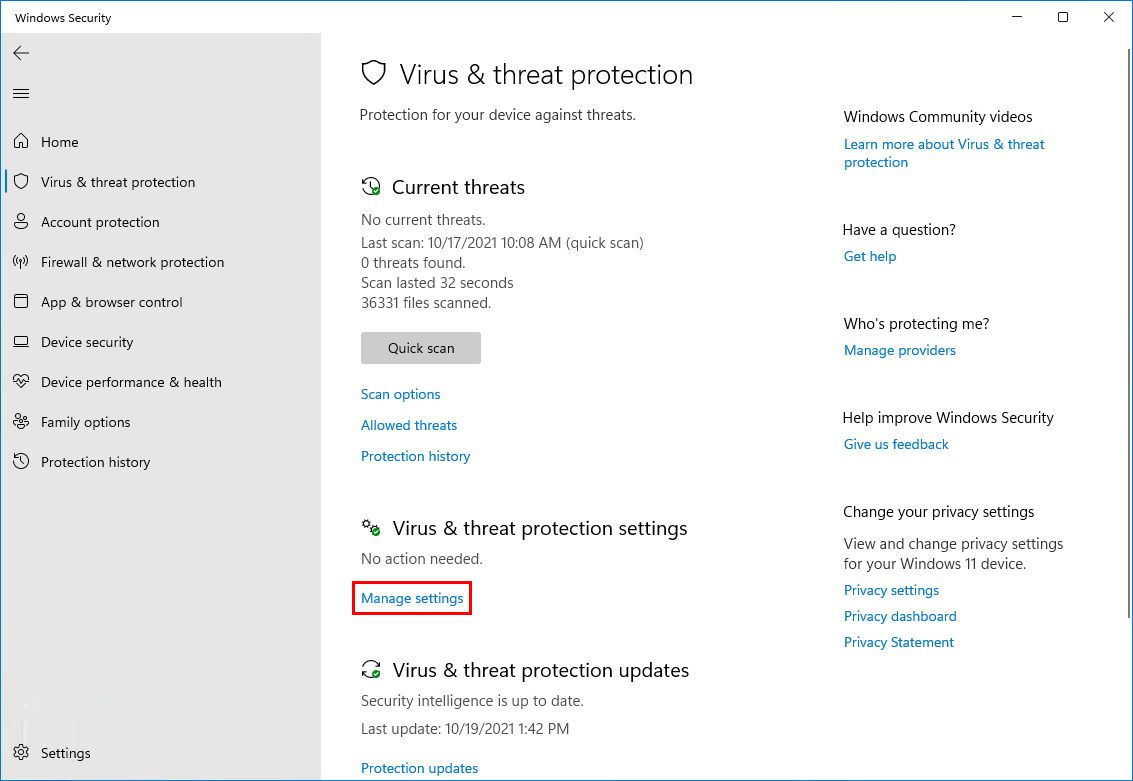
=> Under the “Virus & threat protection settings” section, click on “Manage settings” to change the settings of Defender.


=> Now you get settings to configure Defender, there disable the “Real-time protection” switch and other switches on the same page to temporarily disable Windows Defender.


With this Process Windows Defender get DIsabled but temporarily only after restart or after some time windows will re activate defender automatically as this is a security default feature from windows, you can't disable defender permanently through this. If you want to disable defender permanently see below.

Disabling through "Group Policy Editor" :

=> First of all, we should disable “Tamper Protection” from the Windows Security app. You can disable from : Windows Security >> Virus & threat protection >> Manage settings.


=> After Disabling Tamper Protection, open a Run window by pressing “Win+R” and type “gpedit.msc” to open the Group Policy Editor.


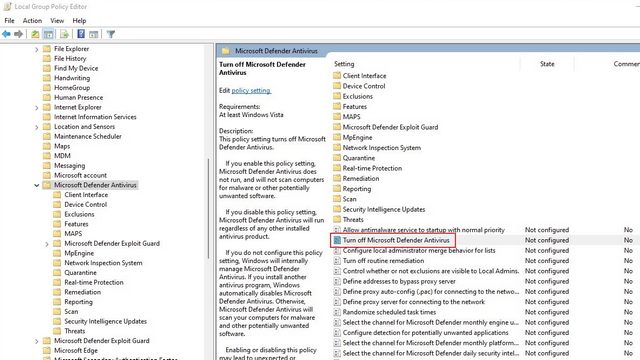
=> Navigate to " Computer Configuration > Administrative Templates > Windows Components > Microsoft Defender Antivirus " and double click on "Turn off Microsoft Defender Antivirus" which will be shown in right side of the screen.


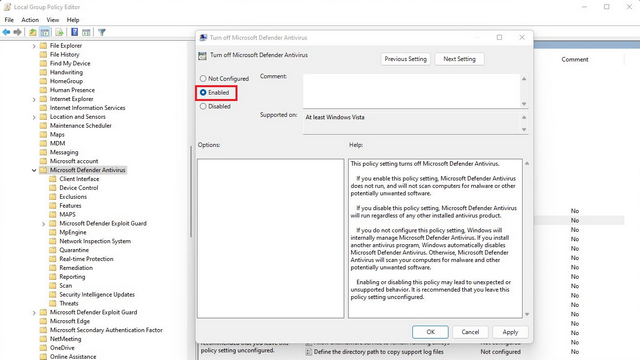
=> In the next pop-up window, select “Enabled” and click “OK” to apply the changes. Once all done, restart your PC. After restart windows defender will no longer run on PC. To re-enable Defender through Group Policy Editor, all you need to do is just choose “Disabled” instead of Enabled and hit “OK”.


Disable through "Registry Editor" :

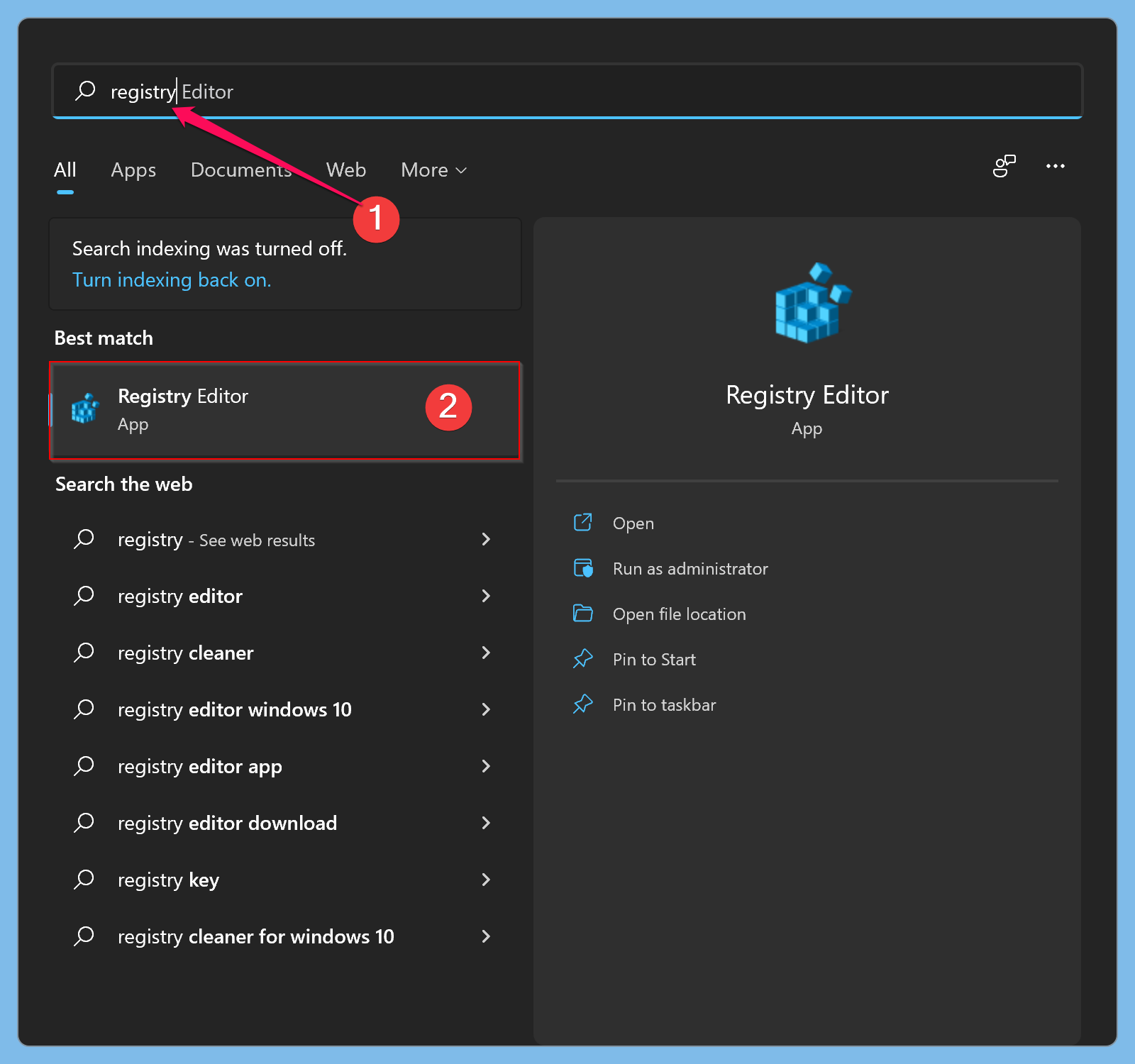
=> Press the Windows key once, type “Registry Editor”, and choose “Run as administrator” to open the program with admin privileges.


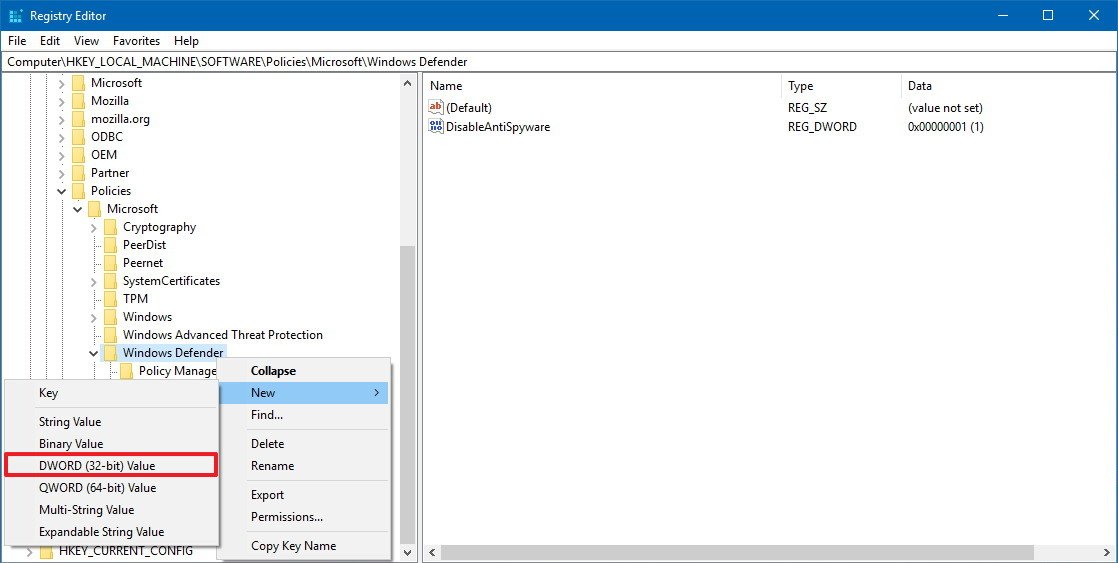
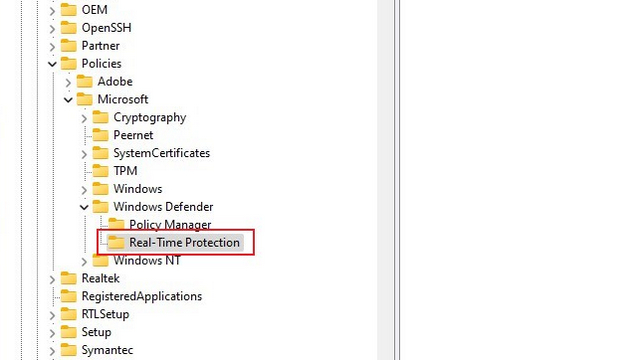
=> Now, Navigate to " HKEY_LOCAL_MACHINE\SOFTWARE\Policies\Microsoft\Windows Defender " and choose New -> DWORD (32-bit) Value. Name it as “DisableAntiSpyware”.


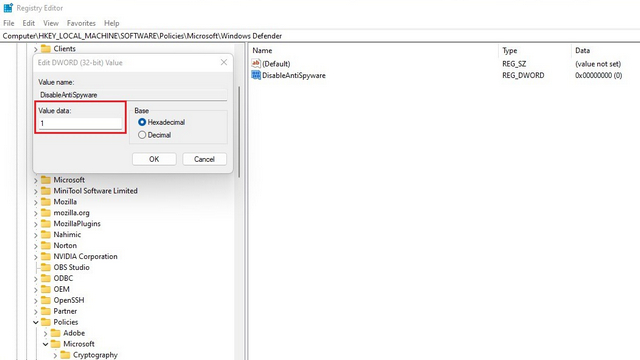
=> Double-click “DisableAntiSpyware” which we created now, and set its value data to “1”. Once you are done, press OK.


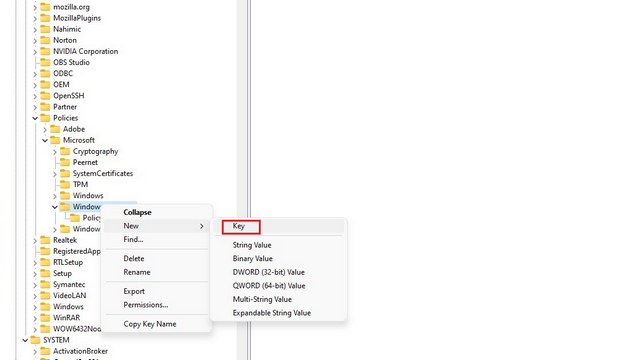
=> You can create new folders within Registry editor, all you have to do is right-click on the parent “Windows Defender” directory and choose New >> Key.


=> You can then name the key based on the path we are about give you because you need to create some folders now. 


=> Now, you know how to create folders now we will give you path, create dword file like above we did.

[HKEY_LOCAL_MACHINE\SOFTWARE\Policies\Microsoft\Windows Defender]
"DisableAntiSpyware" dword:1
"DisableRealtimeMonitoring" dword:1
"DisableAntiVirus" dword:1
"DisableSpecialRunningModes" dword:1
"DisableRoutinelyTakingAction" dword:1
"ServiceKeepAlive" dword:0

[HKEY_LOCAL_MACHINE\SOFTWARE\Policies\Microsoft\Windows Defender\Real-Time Protection]
"DisableBehaviorMonitoring" dword:1
"DisableOnAccessProtection"dword:1
"DisableScanOnRealtimeEnable" dword:1
"DisableRealtimeMonitoring" dword:1

[HKEY_LOCAL_MACHINE\SOFTWARE\Policies\Microsoft\Windows Defender\Signature Updates]
"ForceUpdateFromMU"dword:0

[HKEY_LOCAL_MACHINE\SOFTWARE\Policies\Microsoft\Windows Defender\Spynet]
"DisableBlockAtFirstSeen" dword:1
If you perform all these steps you can successfully disable windows defender permanently.

Enabling Windows Defender :

=> Open Settings app and open “Privacy & security” tab. Now, select “Windows Security” under the “Security” section.


=> Windows Security page appears, click the “Open Windows Security” button. The Windows Security app will now open.


=> Now you can see Windows Security’s home screen. Here, click on the “Virus & threat protection” section and click on “Manage settings” to re-enable Windows Defender.


=> Now, enable the “Real-time protection” switch alongside other switches on the same page to get Windows Defender’s protection back.


So, This is how you can re-enable your windows defender. If you have good RAM we recommend you keep running defender as this gives basic protection for our PCs. Incase you install any anti-virus windows will turn off defender adn make your installed Anti virus as default security suite.


That's it guys, Hope you find information well. If you have any word with us kindly let us know through comments or you can contact us through all our social handles.


Here's how to use Continue on PC Feature on Android :


We all know that Windows 10 had received many updates and many new features in recents years, Along with many new features it had developed it's EDGE browser which is based on Chromium to compatible with Google Services. In their latest release they totally discontinued their Internet Explorer and Included Edge browser.

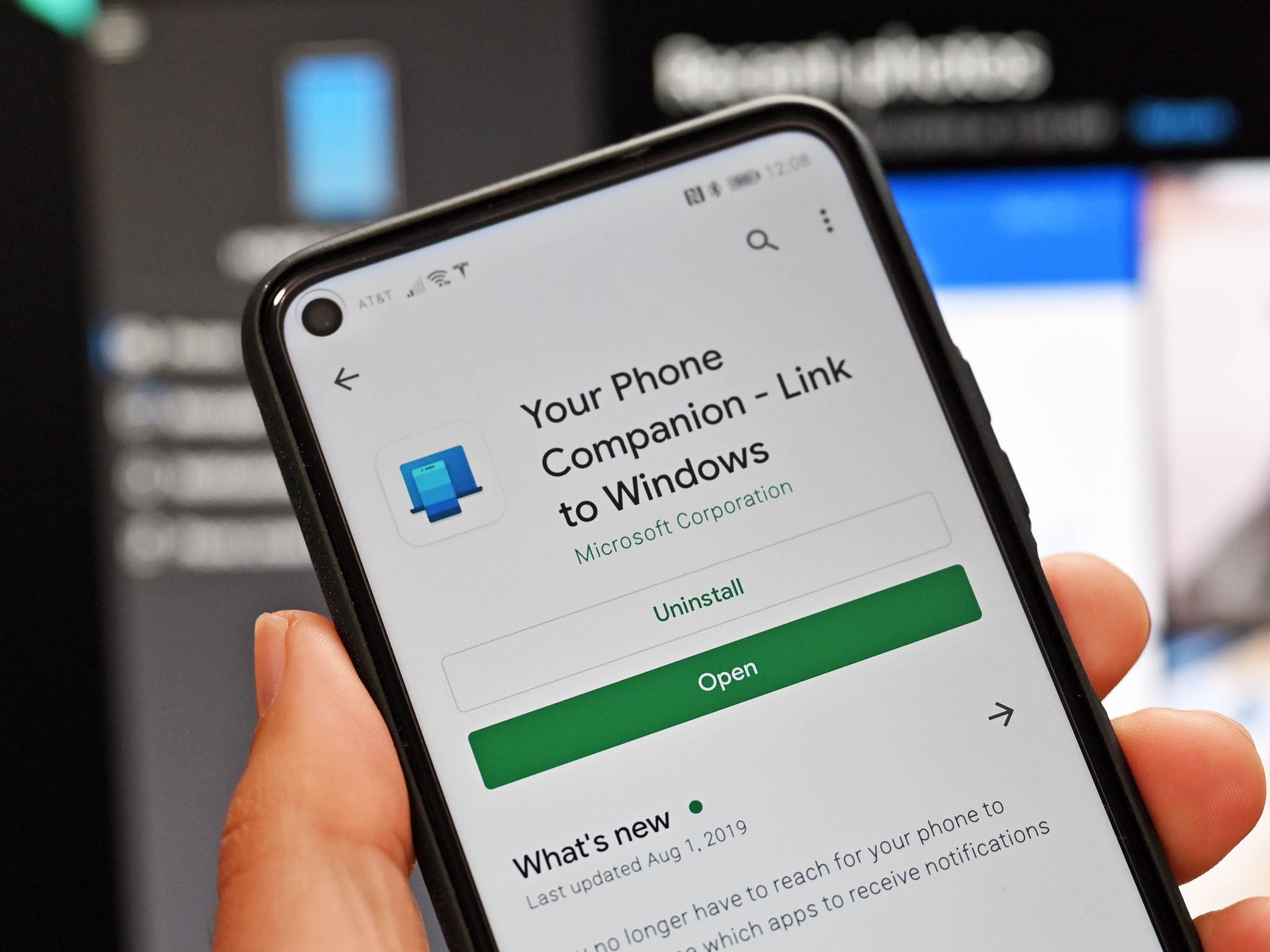
We also know that Microsoft developed and bundled Your Phone application which lets user to connect their android mobiles to their PCs, Through out the year this application also upgraded a lot. 

Why we are discussing all this now ? we not out of the topic guys, we are actually on the topic let's get started with the Process of the application.

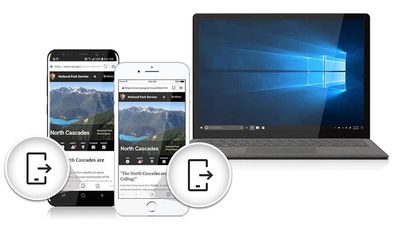
Actually Continue on PC is the feature you can continue browsing which share the same url to your PC from your Mobile here's how you can get on Android.


First of all You need to Connect your mobile with your PC through Your Phone Application :

=> Go to Settings on your Windows PC and then click on Phone


=> In Phone option you can see connected device along with "Add Phone" option, Click on it and it will open a dialogue box that will ask you to enter your mobile number, then it will share a link that will enable web sharing from any browser.


=> After you complete onscreen instruction you will link for the app to your mobile, Click on the link from the text message you received and install the Microsoft Apps application from the Play store

=> After installing the app, open Your Phone application in PC and get started with the connection process

=> Once you click open PC app click on get started 


=> Once you get started in PC, Now another screen appear so that you can select that you have app in your phone as well and you can connect with QR.


=> Now a QR code will be appeared, Scan that code with Your Phone app in your Android mobiles and follow onscreen instructions and give all the permissions required.


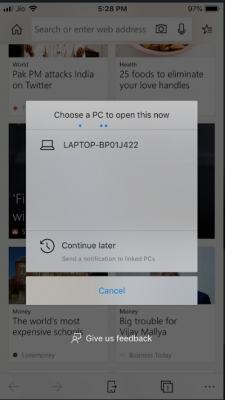
=> From Now on whenever you using any browser from share menu you can have an option which is Continue on PC or an icon like smartphone with an outward arrow, click on it.


=> After selecting the option you will see a window pop up with list of computers connected, select the device you wish to share the link with, and it will open immediately on your PCs default browser.


=> As this is Microsoft's app this will be works best in Microsoft Edge browser, but you can use this with any browser in your mobile. Do check once.


That's for the day guys, Hope you got the information and if you have any word for us we have maximum all social handles which are widely used, get connected there or you can always have the comment box below.

About Avatars in Insta Stories and DMs :


Inorder to compete with Snapchat’s Bitmoji feature, Facebook (Which is now Meta) launched Avatars  back in 2019. At first, the feature was only available in Australia, later in the course of a year Facebook released in other markets as well. The feature lets you create a virtual avatar of yourself that you can use in Messenger or on the Facebook feed. Meta is now bringing the same to Instagram Stories and DMs. In a recent blog post (via CNET), Meta said that Instagram users in the US, Canada, and Mexico will now be able to share their 3D Avatars with others through Stories or via DMs. In addition, the company highlighted all the new changes for 3D Avatars included in the latest update.

New customization options :

Meta’s updated 3D Avatars come with various new customization options, including Cochlear implants, over-the-ear hearing aids in several colors and wheelchairs. These options are available across all platforms, including VR, and will also show up in stickers on Facebook, Messenger, and Instagram DMs. Meta's new update brings improves the look of Avatars.

Meta 3D Avatar updates


Improved availability :

Meta’s 3D Avatars are now available across Facebook, Instagram, and Messenger for users in the US, Mexico, and Canada, along with the regions where Meta has already started rolling out Avatars. Users will now be able to use their 3D Avatars as profile pictures on Facebook and even share them in comments, stickers, and stories across all platforms.

Meta States that if “your previously created an avatar on Facebook in the past, get ready to see a new side of yourself — literally. Your avatar will automatically enter the third dimension as part of this update, and we’re doing our best to make sure your new-and-improved self matches the choices you made previously. That said, there are a lot more options now than there were before! You’ll have the chance to jump into the editor and make some changes.”

In addition, Meta will now let you create different Avatars for different platforms. You’ll have the option to create three distinct Avatars — one for Facebook and Messenger, one for Instagram, and one for VR. If you keep a single Avatar and choose to sync it across platforms, any changes you make will automatically be reflected on all platforms which is cool for many.


That's it guys, If you are in above stated locations then update your app to latest version to get these features and incase if you are from different country just wait for a few more days, the same will be rolled out to your country very soon. If you have any word for us let's get connected.


 Everything about Windows 11 :


Intro of Company & OS :

Microsoft Windows, May be everyone who deals with PCs must know these 2 names for sure and like Android, windows also is one of  part of human life and Windows OS is the widely used operating system in the world. Microsoft has many products among them Windows OS and MS office have seperate place because of their demand in Market. Even Mini and micro organizations use these softwares in day to day life. But many of you have some questions like me, Let me answer you for some of them because i'm also one of you guys :

Wasn't Windows 10 the last version of windows from Microsoft ?

If you were a tech enthusiast and follows the tech news daily you may also know that back in 2015 when microsoft announced Windows 10 operating system company also announced that Windows 10 is their last windows operating System and there is no other operating system launches but they promised to release updates to Windows 10.


All these years Microsoft pushed many updates to windows and also developed an OS which is mainly focused for Touch screen devices like Windows Surface and firstly they named it as Windows X, At the development of that they push an update which is 2004 update which changes look of windows 10 a lot
later company planned a rebranded version to windows 10 which changes looks and also more optimised than current version but company rethink about their previous word and developed a seperate Operating system with advanced features and fully optimised and launched the OS as Windows 11.

So, Where is Windows 10X ?

Actually Windows 10X was supposed to be the real next generation of Windows. Along with a complete visual overhaul, it had a lot of under-the-hood changes like running all apps in containers. Microsoft recently announced that it’s dead, and a lot of its features are being folded into Windows 11.
So, there are many features of windows 10X merged into Windows 11.


Let's get started with the Origin of the OS 

Announcement and Release :

=> Windows 11 was officially announced at a virtual event hosted by Chief Product Officer Panos Panay on June 24 2021.

=> On June 24 media event, Microsoft also announced that Windows 11 would be released in "Holiday 2021". 

=> Its release will be accompanied by a free upgrade for compatible Windows 10 devices through Windows Update.

=> On June 28, Microsoft announced the release of the first preview build and SDK of Windows 11 to Windows Insiders.

=>  Microsoft officially released Windows 11 on October 5. It can be obtained as an in-place upgrade via either the Windows 11 Installation Assistant application or via Windows Update on eligible devices


Okay till now we got to know about It's Origin and Releases details now let's get into it's features.

Features :

Windows 11, the first major Windows release since 2015,  The redesign, which focuses on ease of use and flexibility, comes alongside new productivity and social features and updates to security and accessibility, addressing some of the deficiencies of Windows 10.

The Microsoft Store also redesigned in Windows 11. Microsoft now allows developers to distribute Win32, progressive web applications, and other packaging technologies in the Microsoft Store, alongside Universal Windows Platform apps. The collaboration platform Microsoft Teams is integrated into the Windows 11 user interface, and is accessible via the taskbar. Skype will no longer be bundled with the OS by default.

Microsoft claims performance improvements such as smaller update sizes, faster web browsing in "any browser", faster wake time from sleep mode, and faster Windows Hello authentication. Windows 11 ships with the Chromium-based Microsoft Edge web browser and does not include or support Internet Explorer. Its rendering engine MSHTML (Trident) is still included with the operating system for backwards compatibility reasons, and Edge can be configured with Group Policy to render whitelisted websites in "IE Mode". 

Windows 11 is the first version of Windows since the original retail release of Windows 95 to not ship with Internet Explorer. The updated Xbox app, along with the Auto HDR and DirectStorage technologies introduced by the Xbox Series X and Series S, will be integrated into Windows 11; the latter requiring a graphics card supporting DirectX 12 and an NVMe solid-state drive.


User interface

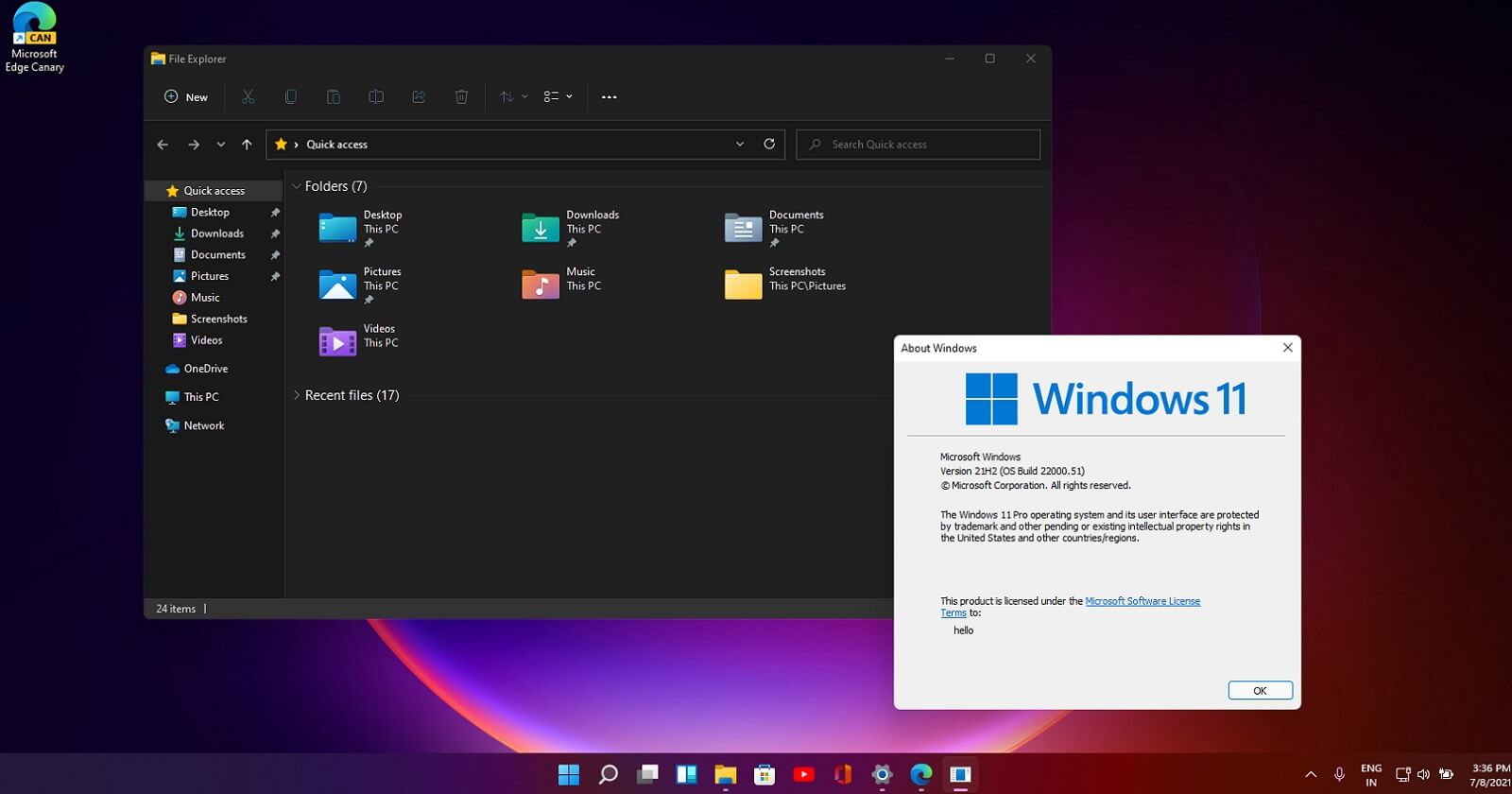
If you can see a redesigned user interface is present frequently throughout the operating system, building upon Fluent Design System; translucency, shadows, a new color palette, and rounded geometry are prevalent throughout the UI.  Much of the interface and start menu takes heavy inspiration from the now-canceled Windows 10X. The Segoe UI font used since Windows Vista has been updated to a variable version, improving its ability to scale between different display resolutions.


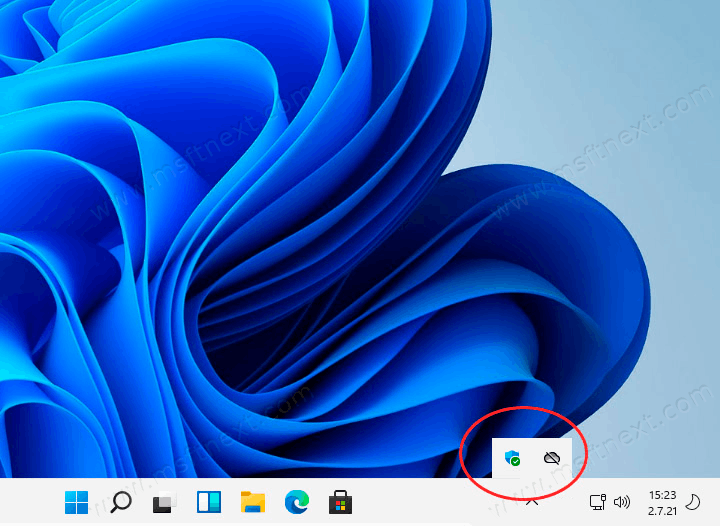
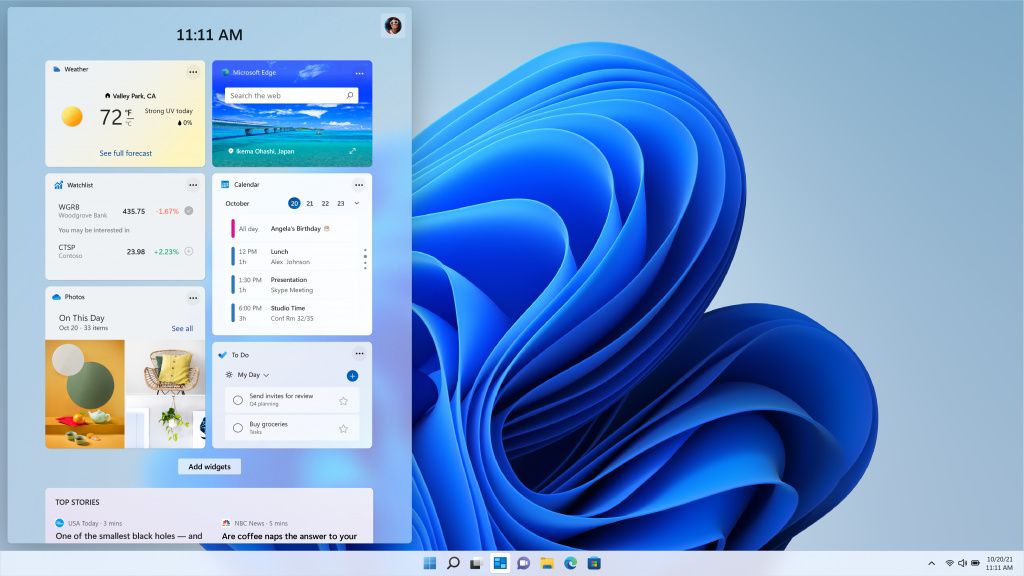
The taskbar's buttons are center-aligned by default, and it is permanently pinned to the bottom edge of the screen; it cannot be moved to the top, left, or right edges of the screen as in previous versions of Windows without manual changes to the registry. The notifications sidebar is now accessed by clicking the date and time, with other Quick Actions toggles, as well as volume, brightness, and media playback controls, moved to a new settings pop-up displayed by clicking on the system tray. The "Widgets" button on the taskbar displays a panel with Microsoft Start, a news aggregator with personalized stories and content (expanding upon the "news and interests" panel introduced in later builds of Windows 10). Microsoft Teams is similarly integrated with the taskbar, with a pop-up showing a list of recent conversations.


The Start menu has been significantly redesigned, replacing the "live tiles" used by Windows 8.x and 10 with a grid of "pinned" applications, and a list of recent applications and documents. File Explorer was updated to replace its ribbon toolbar with a more traditional toolbar, while its context menus have been redesigned to move some tasks (such as copy and paste) to a toolbar along the top of the menu, and hide other operations under an overflow menu.


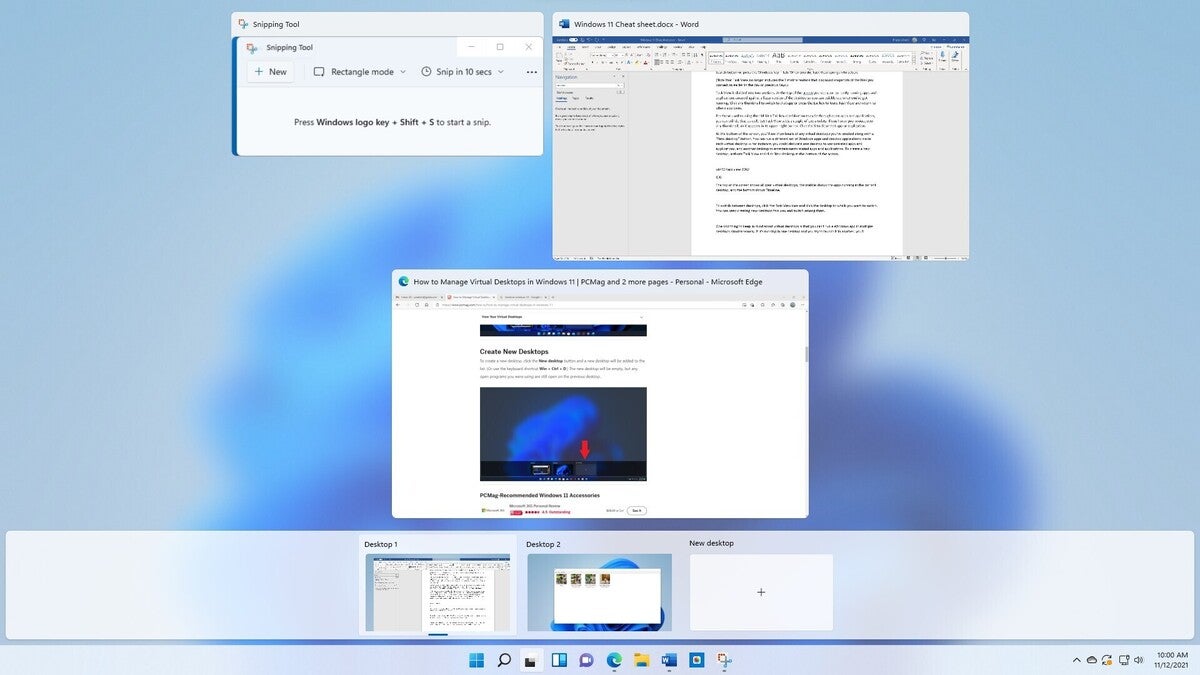
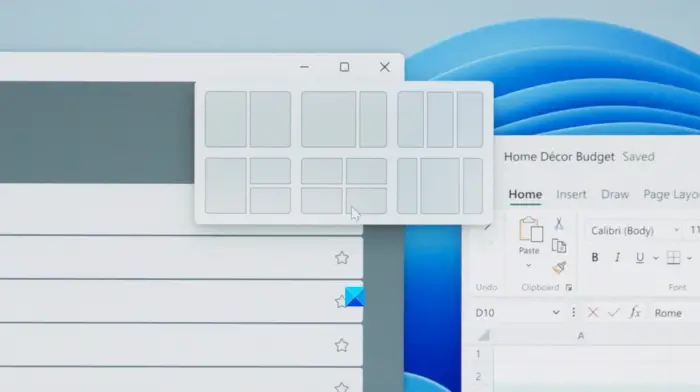
Task View, a feature introduced in Windows 10, features a refreshed design, and supports giving separate wallpapers to each virtual desktop. The window snapping functionality has been enhanced with two additional features; hovering over a window's maximize button displays pre-determined "Snap Layouts" for tiling multiple windows onto a display, and tiled arrangement of windows can be minimized and restored from the taskbar as a "snap group". When a display is disconnected in a multi-monitor configuration, the windows that were previously on that display will be minimized rather than automatically moved to the main display. If the same display is reconnected, the windows are restored to their prior location.


Android Support through Windows Subsystem for Android

On October 21, 2021, Windows Subsystem for Android (WSA) became available to Beta channel builds of Windows 11 for users in the United States (You can use it with some changes even in India),  which allows users to install and run Android apps on their devices. Users can install Android apps through any source using the Android application package (APK) file format. An Amazon Appstore client for Microsoft Store will also be available, for now we can install android apps through Amazon Appstore or by sideload of apps. WSA is based on the Intel Bridge runtime compiler; Intel stated that the technology is not dependent on its own CPUs, and will also be supported on x86-64 and ARM CPUs from other vendors.


System security

As part of the minimum system requirements, Windows 11 only runs on devices with a Trusted Platform Module 2.0 security coprocessor. According to Microsoft, the TPM 2.0 coprocessor is a "critical building block" for protection against firmware and hardware attacks. In addition, Microsoft now requires devices with Windows 11 to include virtualization-based security (VBS), hypervisor-protected code integrity (HVCI), and Secure Boot built-in and enabled by default. The operating system also features hardware-enforced stack protection for supported Intel and AMD processors for protection against zero-day exploits.


All New Calculator App


Microsoft adding a whole bunch of rounded corners to inbox apps like Calculator and also included things like programmer mode, graphing mode, and support for over 100 units and currencies.


Clock with Focus Sessions :

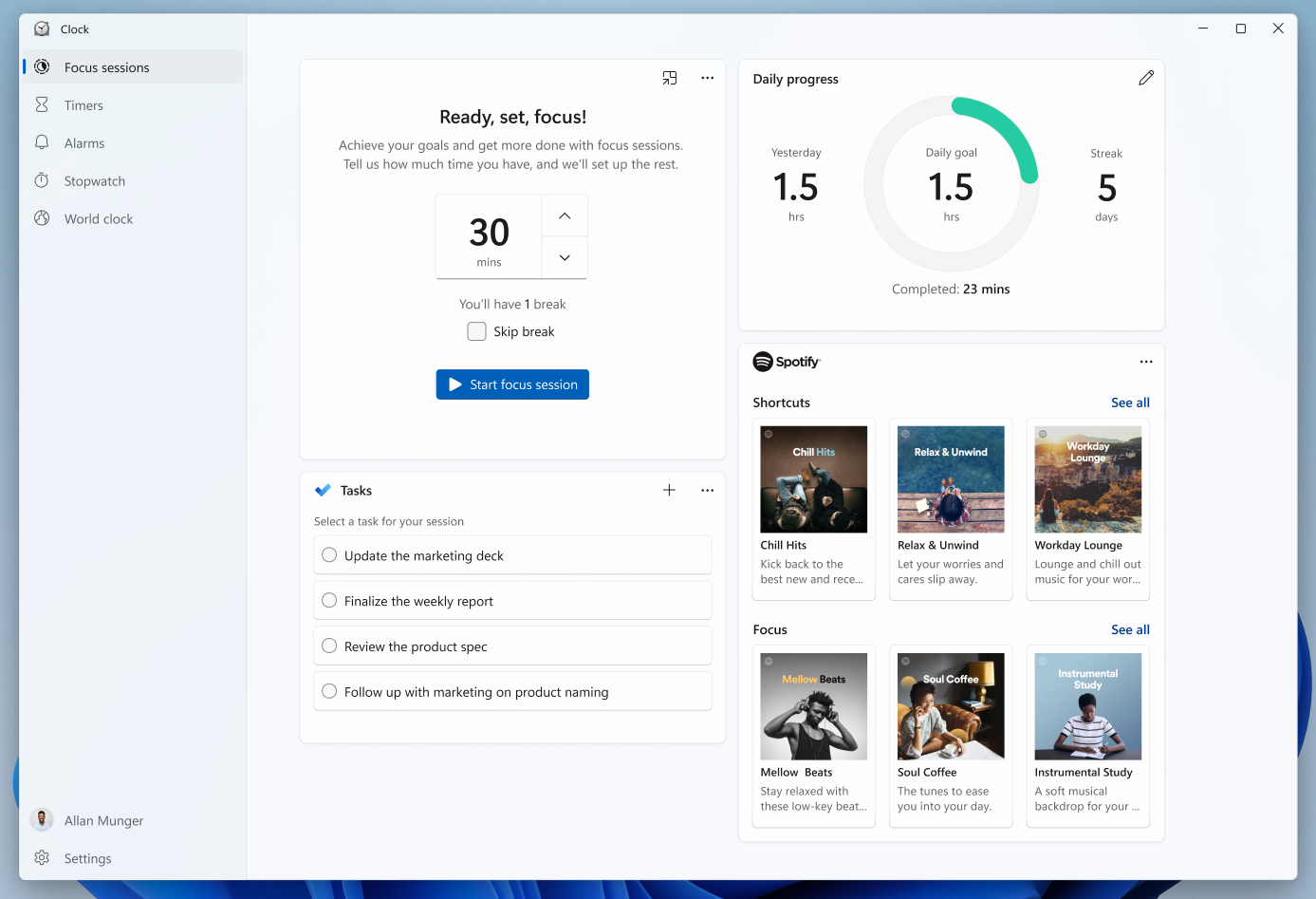
Microsoft is about to introduce a new feature called Focus Sessions with the Clock app in Windows 11. They’re basically scheduled sessions to help you stay focused on a certain task for a certain period of time. You can set a timer for your Focus Session, and you can even link your Spotify for background music. It also integrated with Microsoft To Do, allowing you to sync up with with the tasks that you have scheduled. There’s also a daily progress dashboard, and a bunch of options to let you customize your Focus Sessions according to your need.


Improved Gaming :

Microsoft is making Azure play. Windows 11 has a bunch of gaming improvements. One of them is Auto HDR, a feature first included in Xbox Series X|S consoles, and now coming to Windows. It automatically adds HDR to older games,  Another feature being borrowed from the firm’s latest consoles is DirectStorage. You’ll need a “DirectStorage Optimized” PC for this one, as you’ll need the kind of SSD that was engineered as part of the Xbox Velocity Architecture, but it’s going to allow for super-fast loading times and better performance. 
Finally, Xbox Cloud Gaming is going to be built-in. It’s going to be part of the Xbox app on Windows 11.


A New Photos App :

Microsoft is introducing an all-new Photos app to the OS, which uses the new Mica material and of course, has rounded corners. There are also theme-specific color palettes and new typography. There’s also a new toolbar for basic photo editing, but more notable is a “filmstrip” that appears across the bottom. This lets you easily scroll through the other images in your album or library. Also, there’s a multi-view option where you can see more than one image at once.


Layouts and Groups Snap :

As we know that Windows 10 brought us Snap Assist, and Windows 11 is bringing us Snap Layouts and Snap Groups. In Windows 11, you can hover over the maximize button, and you’ll be presented with layout options. You can select one of the tiles in the layouts, and your app will snap to that position on the screen. Snap Assist will help you fill in the rest. While this is useful for everyone, it should be particularly useful for those that use ultra-wide monitors. Microsoft has never supported three apps side-by-side before.

Snap Groups keeps your snapped windows stored. In other words, if you minimize all of your windows and then hover over the app in the taskbar, you’ll see an option to put all snapped apps back in their positions.


Snipping Tool

Snipping tool is a lot like if you combined the classic Snipping Tool and Snip and Sketch into one redesigned UWP app. You have options like Rectangular Snip, Freeform Snip, Window Snip, and Fullscreen Snip, and you can use the Win + Shift + S shortcut to get started. After that, it also provides editing tools so you can mark them up and more. And of course, it has dark theme support as well.


Widgets 

Microsoft is adding a widgets panel, which will slide in from the left. The company seems to like to compare it to a pane of glass sliding out. There are plenty of widgets available from apps like OneDrive, Microsoft To Do, and more, but they’re all first-party. Third-party widgets will be available soon.


If you want to upgrade to Windows 11 here is the list of Eligibility check :

Processor : 1 gigahertz (GHz) or faster with 2 or more cores on a compatible 64-bit processor or System on a Chip (SoC)

RAM : 4 gigabyte (GB)

Storage : 64 GB or larger storage device

System firmware: UEFI, Secure Boot capable

TPM: Trusted Platform Module (TPM) version 2.0

Graphics card: Compatible with DirectX 12 or later with WDDM 2.0 driver

Display: High definition (720p) display that is greater than 9” diagonally, 8 bits per color channel

Internet connection and Microsoft accounts: Windows 11 Home edition requires internet connectivity and a Microsoft account to complete device setup on first use.

For all Windows 11 editions, internet access is required to perform updates and to download and take advantage of some features. A Microsoft account is required for some features. If you have these specs then give it a try.


That's what we gathered till date and we will update eventually, Many more articles about windows 11 may publish soon. 


That's for the story guys, Hope you guys got what you want, if you have any word for us, kindly let us know.

Newer Posts
Older Posts

Subscribe To

Posts
Atom
Posts
All Comments
Atom
All Comments

Follow us on

Popular Posts

  • IOS 15 : All you need to know about Apple Mobiles New Operating System
      A s we all know that IOS is the exclusive operating system developed by and used by Apple Mobiles  now as per the annual update we have IO...
  • Process to get Early Access to Task Mate app in India
      Here is how to get Access to Task Mate app : All you need to know about Task Mate app in India      As per reported information Task Mate ...
  • Hidden Features, Tips and Tricks of Facebook
       Hidden Features Of Facebook You Must Know   Facebook: is the social media platform everyone uses, but just don’t lay behind in social med...

Labels

Android (3) Android app (6) Color OS (2) Early-Access (1) Funtouch OS (1) Gadgets (2) Harmony OS (1) How to Guide (8) IOS (4) IOS app (4) MI UI (1) New Releases (10) One UI (2) Oxygen OS (1) Rumoured (3) Tech News (12) Updated Notes (4) Windows 10 (4) Windows 11 (6)

recent posts

Blog Archive

  • ▼  2022 (66)
    • ▼  February (29)
      • Feb 12 (1)
      • Feb 11 (1)
      • Feb 10 (2)
      • Feb 09 (5)
      • Feb 08 (2)
      • Feb 07 (2)
      • Feb 06 (2)
      • Feb 05 (2)
      • Feb 04 (1)
      • Feb 03 (1)
      • Feb 02 (4)
      • Feb 01 (6)
    • ►  January (37)
      • Jan 31 (3)
      • Jan 30 (2)
      • Jan 29 (4)
      • Jan 28 (4)
      • Jan 27 (11)
      • Jan 26 (5)
      • Jan 25 (8)

Created with by TechEra